Write a MATLAB plugin
A MATLAB plugin is a folder with a small text file that describes it (desc.txt) and a MATLAB function (main.m).
AnyWave lists the plugin in its Processes menu, starts MATLAB when you launch it and calls main. The plugin talks
to AnyWave through one function, anywave(): it reads the data and the markers of the
recording that is open, and sends back markers, messages and changes of display.
The folder of your plugins is:
Documents\AnyWave\Plugins\MATLABon Windows;/Users/<username>/AnyWave/Plugins/MATLABon macOS;/home/<username>/AnyWave/Plugins/MATLABon Linux.
Requirements
You need MATLAB. AnyWave detects the installations when it starts: open Edit > Preferences > MATLAB to see which ones it found and which one is used by default.
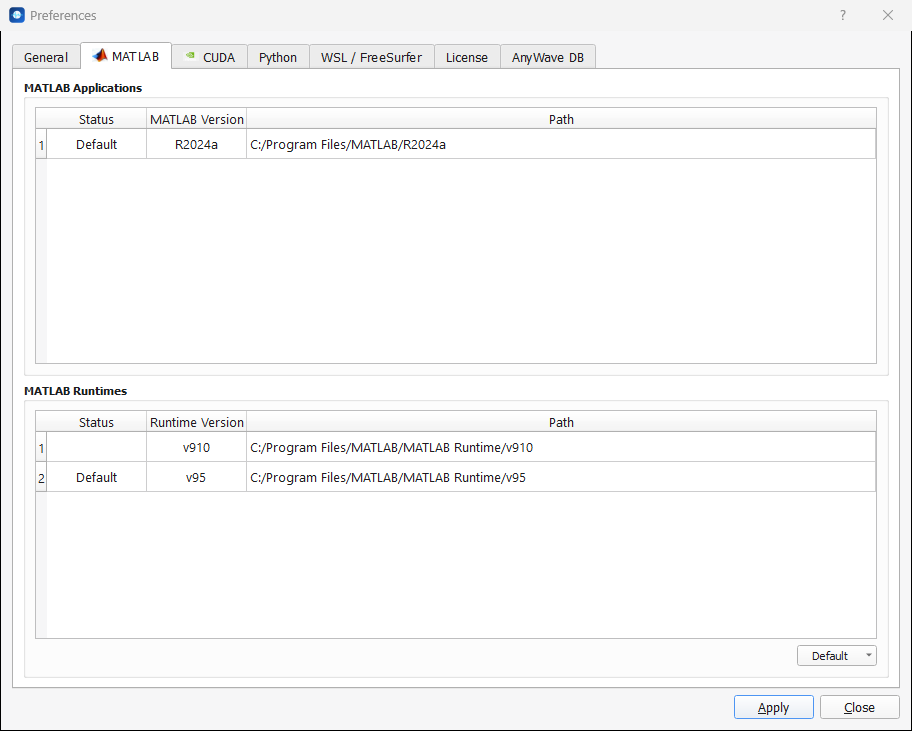
- MATLAB Applications lists the installed MATLAB. A MATLAB plugin is ignored when no MATLAB is detected.
- MATLAB Runtimes lists the installed MATLAB Runtimes, which are needed to run a compiled plugin on a computer without MATLAB.
- If MATLAB or the Runtime is installed in a custom folder, AnyWave cannot see it. Tell it where it is in a
user.jsonfile, see Customise the settings.
Your first plugin
The example of this page is a detector: it reads the EEG channels, computes the RMS of every channel on windows of one second, and marks the windows where the RMS is above a threshold.
1. Create the plugin
Choose Processes > Create new MATLAB or Python plugin. This is the Plugin Creation Assistant.
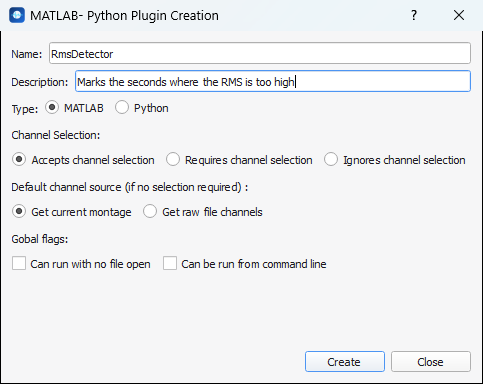
Give a name and a description (both are required), check that Type is MATLAB and click Create. The
choices of the other groups end in desc.txt, see below:
| In the assistant | Written in desc.txt |
|---|---|
| Channel Selection: Accepts, Requires or Ignores channel selection | modifiers_flags |
| Default channel source: Get current montage or Get raw file channels | input_flags |
| Can run with no file open | flags = nodatarequired |
| Can be run from command line | flags = canrunfromcommandline |
AnyWave creates the folder RmsDetector in your MATLAB plugins folder, with desc.txt and a main.m that already
calls anywave('init', ...), and opens it. A name that is already used by another MATLAB plugin is refused.
2. Write main.m
function main(varargin)
args = anywave('init', varargin);
anywave('send_message', ['RMS detector on ' args.data_file]);

threshold = 50;                     % in the unit of the channels (microvolts for EEG)

% 1. the EEG channels of the current montage, without filter
cfg = [];
cfg.types = {'EEG'};
cfg.raw_data = true;
out = anywave('get_data', cfg);
if isempty(out)
    error('No EEG channel in the current montage.');
end
data = double(out.data);            % one row per channel, one column per sample
names = {out.channels.name};
sr = out.channels(1).sr;            % sampling rate in Hz

% 2. RMS of every channel on windows of one second
win = round(sr);
count = 0;
markers = struct('label', {}, 'position', {}, 'duration', {}, 'value', {}, 'color', {}, 'channels', {});
for w = 1:floor(size(data, 2) / win)
    segment = data(:, (w - 1) * win + (1:win));
    rms = sqrt(mean(segment .^ 2, 2));
    for c = find(rms > threshold)'
        count = count + 1;
        markers(count).label = 'high_rms';
        markers(count).position = w - 1;            % seconds
        markers(count).duration = 1;                % seconds
        markers(count).value = rms(c);
        markers(count).color = '#FF8800';
        markers(count).channels = names(c);         % cell array of labels
    end
end

% 3. send the markers back to AnyWave
if count > 0
    anywave('send_markers', markers);
end
anywave('send_message', sprintf('%d marker(s) sent', count));
end
Every command is described in The anywave() function.
3. Add a menu entry
Open desc.txt and add a category line, to put the plugin in a submenu of the Processes menu:
name = RmsDetector
description = Marks the seconds where the RMS is too high
category = Process:Detectors:RMS detector
input_flags = getcurrentmontage
4. Run it
AnyWave looks for the plugins when it starts: restart it after you added a plugin. (Changing the code of main.m
needs no restart: MATLAB reads the file each time the plugin runs.)
Open a recording and choose Processes > Detectors > RMS detector. AnyWave starts MATLAB in the background, which takes a few seconds the first time, and runs the plugin.
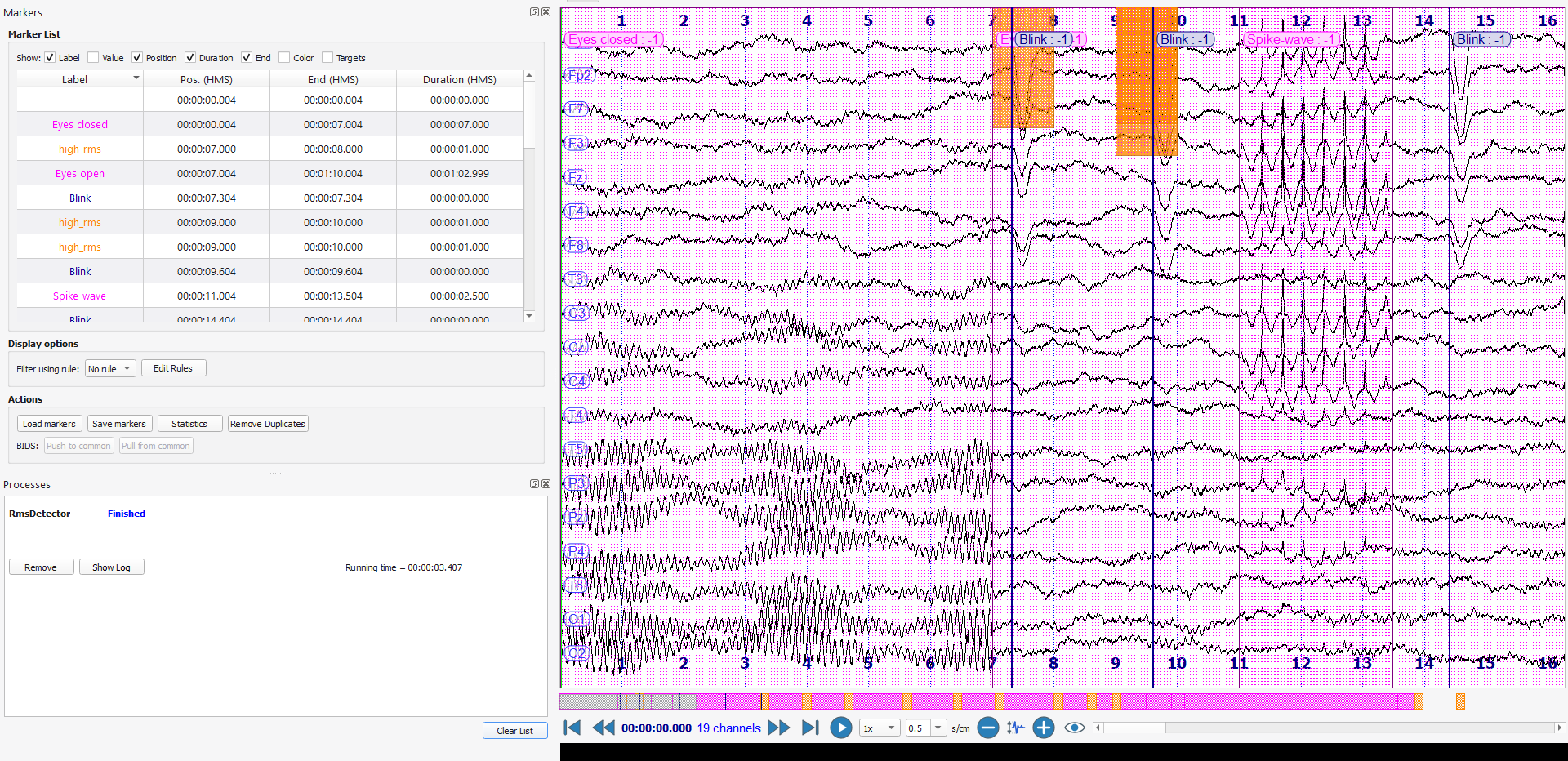
- The Processes panel shows the plugin, its state (here Finished) and its running time. Remove takes it out of the list, Show Log gives access to its log.

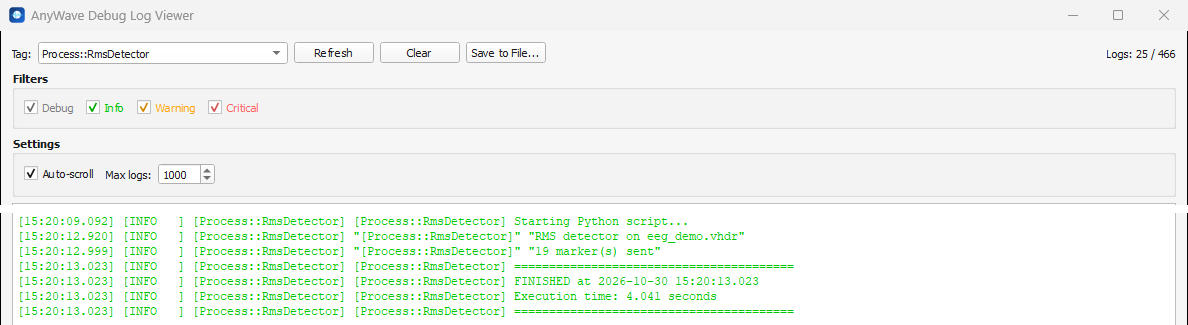
- The messages of
send_messageand the messages of AnyWave about the plugin are in the debug log (View > Debug logs). Choose the tagProcess::RmsDetectorto see the plugin only.
- The markers sent by the plugin are in the marker list. Here the 19
high_rmsmarkers are drawn in orange, on the channel that triggered each one (Display markers, in the menu of the view, shows them in the signal view).
The plugin folder
Plugins/MATLAB/RmsDetector/
├── desc.txt          required: what AnyWave knows about the plugin
├── main.m            required: the code, a function called main
├── args.json         optional: the options of the command line
└── batch_ui.json     optional: the parameters window of the Batch
The folder is added to the MATLAB path when the plugin runs: put your other .m files in it, and call them from
main.m. AnyWave also creates a dep folder next to your plugins, meant for the dependencies of the plugins.
desc.txt
A text file with one key = value line per setting. Lines that start with # are comments. A value cannot contain
the character =.
| key | meaning |
|---|---|
name |
required. The name of the plugin, as it is listed in AnyWave and as the command line calls it. |
description |
required. A sentence that says what the plugin does. |
version |
the version of your plugin, for instance 1.2.0. Default: 1.0.0. |
category |
Process:<Menu>:<Entry>: the plugin is in the submenu <Menu> of the Processes menu, under the label <Entry>. Without it, the plugin is a direct entry of the Processes menu, with its name. |
input_flags |
which channels get_data returns when you do not ask for any in particular: getcurrentmontage (the channels of the montage, the default) or getasrecordedchannels (the channels of the file, without the montage). |
flags |
what the plugin can do, see below. |
modifiers_flags |
written by the assistant from its Channel Selection choice: acceptchannelselection, processrequireschannelselection or processignoreschannelselection. It does not change what get_data returns, see the tip below. |
compiled plugin, runtime |
for a compiled plugin. |
The flags are separated by a colon, and written in any case:
| flag | effect |
|---|---|
nodatarequired |
the plugin can run even when no recording is open (its other name is processdoesntrequiredata) |
canrunfromcommandline |
the plugin can run from the command line and in the Batch |
flags = nodatarequired:canrunfromcommandline
Tip
To get the channels that are selected in the views, ask for them in your code: cfg.channels_source = 'selection'
in get_data.
Command line
A plugin can run when AnyWave is launched from the command line, with no window:
anywave --run MyPlugin --input_file <filepath> --plugin_option1 option --plugin_option2 option ...
Add the flag canrunfromcommandline to desc.txt:
flags = canrunfromcommandline
Handle the command line options
The options of the command line are in the args structure returned by anywave('init', varargin):
args = anywave('init', varargin);

disp(args.plugin_option1);      % value of plugin_option1 on the command line
disp(args.plugin_option2);      % value of plugin_option2 on the command line
This only works when AnyWave knows the options. Otherwise the command line stops with an error that says that
plugin_option1 and plugin_option2 are unknown options. List them in a file called args.json in the folder
of the plugin:
{
     "parameters" : ["plugin_option1", "plugin_option2"]
}
The names of the keys are in lowercase. Besides parameters, args.json accepts two more keys: switches for
options written alone on the command line (--name) and flags for options that take true or false
(--name true). See Command line for the three kinds.
Parameters window for the Batch
The Batch tool of AnyWave runs a plugin on many files. It asks for the parameters of the plugin once, before the
first file, and applies them to every file. To make your plugin available in the Batch with a parameters window,
without writing any user interface code, add a second file called batch_ui.json next to args.json. The plugin
must also have the canrunfromcommandline flag in desc.txt. AnyWave builds the window from this description.
For example, this batch_ui.json:
{
    "gain":       { "label": "Gain",         "type": "double", "method": "spinbox",  "default": 2.5, "min": 0, "max": 100 },
    "iterations": { "label": "Iterations",   "type": "int",    "method": "spinbox",  "default": 10,  "min": 1, "max": 500 },
    "window":     { "label": "Window",       "type": "string", "method": "combobox", "choices": ["hann", "hamming", "none"], "default": "hann" },
    "output_tag": { "label": "Output label", "type": "string", "method": "lineedit", "default": "run1" },
    "normalize":  { "label": "Normalize",    "type": "bool",   "method": "checkbox", "default": true },
    "fields_ordering": ["gain", "iterations", "window", "output_tag", "normalize"]
}
with this args.json:
{
    "parameters": ["gain", "iterations", "window", "output_tag"],
    "flags": ["normalize"]
}
gives a window with five fields: two number boxes (decimal and integer), a list, a text field and a check box.
| key | meaning |
|---|---|
label |
the text shown in front of the field (default: the name of the option) |
type |
int, double, string or bool |
method |
spinbox (number, int or double), combobox (a list, needs choices), lineedit (text) or checkbox (bool) |
default |
the initial value |
min, max |
the limits of a spinbox |
choices |
the entries of a combobox |
fields_ordering |
required: the options to show, in the order of the window |
Things to know:
- Every field of batch_ui.json is also an option of the plugin: declare it in args.json (
parametersfor numbers and text,flagsfor check boxes). - The Batch writes the values, with their type (number, text,
trueorfalse), in the job file of each run (see Running a plugin). The plugin receives them like the other options of the command line (in theargsstructure returned byanywave('init', varargin)). - The filters, the montage and the choice of markers (
hp,lp,notch,montage_file,create_montage,use_markers,skip_markers) are asked by the Batch itself: do not declare them, they are ignored. - This window exists only in the Batch. When your plugin is launched from the Processes menu, AnyWave shows no parameters window of its own: the plugin asks the user for what it needs itself.
Compiled plugin
With the MATLAB Compiler you can make a standalone version of your plugin, that runs on a computer with the matching
MATLAB Runtime and no MATLAB. AnyWave calls the standalone version when desc.txt has the line:
compiled plugin = nameofexefile
On Windows it is the name of the .exe file that is in the plugin folder. On macOS and Linux it is the script (.sh).
It is strongly recommended to give the version of the Runtime that the plugin needs:
runtime = R2024b
You have to install the matching Runtime on the computer. AnyWave detects the Runtimes at startup (see Requirements) and sets up the context of the plugin with the one it asks for.
More
- The anywave() function: all the commands, with a complete example.
- get_data: the channels and the time ranges to read.
- Make your plugin BIDS Pipeline compatible.
- Debug a plugin directly in MATLAB.