Look at the components
When an ICA is loaded, right after computing it or with Load ICA components, the components show in two places: in a view under your signals, and in the ICA Components window.
The view of the components
AnyWave adds a second signal view under the one that shows your signals. Each component is a channel named after the type of the channels it comes from:
| Name | Type of the ICA |
|---|---|
E_IC1, E_IC2... |
EEG |
M_IC1, M_IC2... |
MEG |
S_IC1, S_IC2... |
SEEG |
EMG_IC1, EMG_IC2... |
EMG |
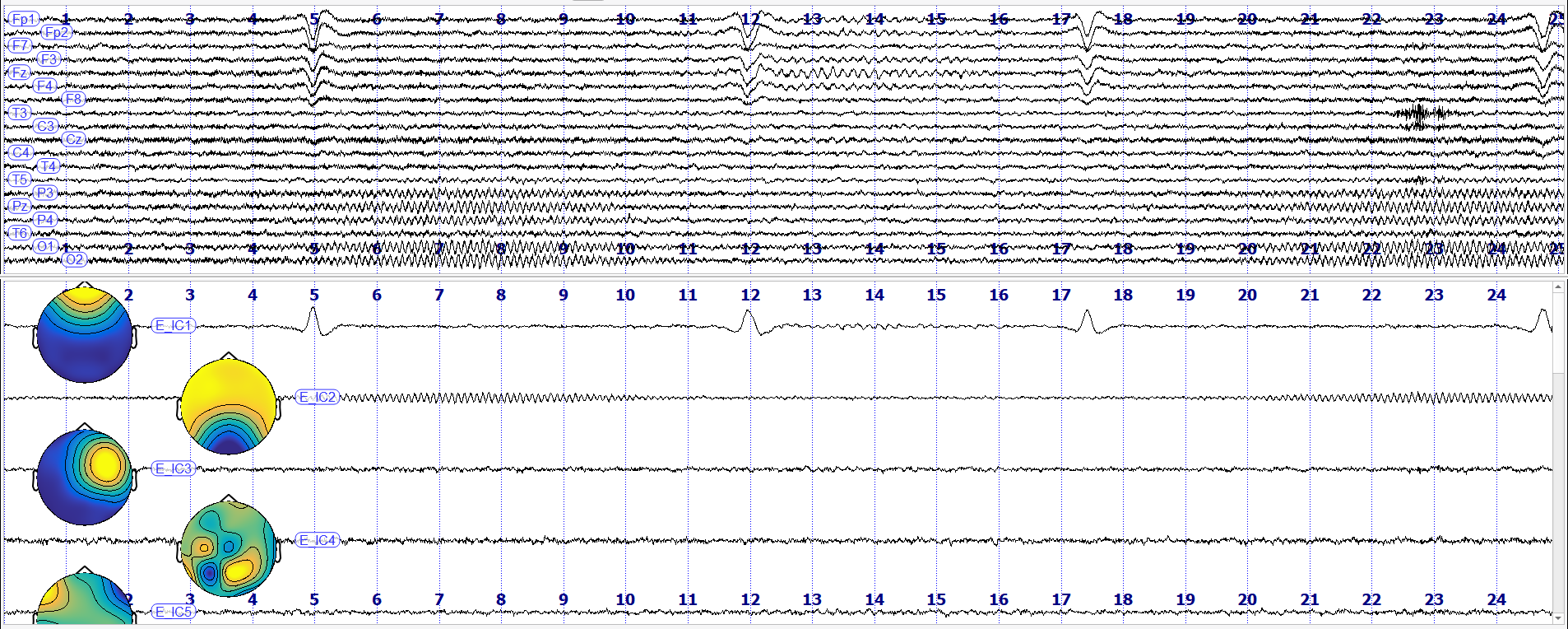
Next to the name of each trace, the map of the component shows how it is spread over the head: the colors tell which sensors see the component with a positive or a negative sign, and where it is the strongest. The maps show when Show maps in traces is ticked in the ICA Components window.
The two views are synchronized: they show the same time, and they move together when you navigate. Each view has its own navigation bar, so use the gain buttons of the lower one to scale the components. A component is a channel like the others: the scroll bar, the markers and the selection of traces work as in any signal view.
If you close the view of the components, bring it back with Add View in the toolbar: tick ICA in the list of the types of channels (see Several views).
Note
The components are always computed from the signals with the filters of the ICA (the ones you chose when you computed it), even if you change the filters of the signals afterwards.
Recognize an artefact
A component is the combination of a map and a time course. Look at both:
| Component | Map | Time course |
|---|---|---|
| Eye blink | Concentrated at the front of the head (Fp1, Fp2) | Sharp deflections, one for each blink |
| Eye movement | Opposite signs on the left and on the right of the front | Steps and slow deflections |
| Muscle | Concentrated on a few sensors, often at the edge of the head (temporal) | Bursts of fast, irregular activity |
| Heartbeat | Wide, often with a left to right gradient | Regular deflections, one for each heartbeat |
| Line noise | Wide and flat | A regular 50 or 60 Hz oscillation |
| Brain rhythm (alpha, for instance) | Concentrated over the area that produces it (the back of the head for alpha) | Rhythmic bursts |
In the figure above, E_IC1 has a map concentrated at the front of the head, and its deflections at 5, 12, 17 and 24
seconds are the blinks that you can see in Fp1 and Fp2 in the signals. E_IC2 has a map concentrated at the back of
the head and bursts of rhythmic activity at about 10 Hz: it is the occipital alpha, not an artefact.
Click a trace to select it: it is drawn in red, and its card is ticked in the ICA Components window.
The menu of a component
Right-click the name of a component to open its menu. It has the entries of the menu of any view, and the ones of the component.
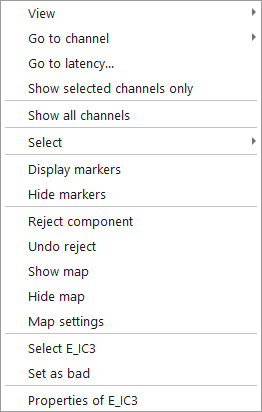
| Entry | Effect |
|---|---|
| Reject component | Rejects the component. |
| Undo reject | Brings it back. |
| Show map, Hide map | Shows or hides the map next to the name of this component. |
| Map settings | Opens the settings of the map of this component. |
| Select name, Set as bad, Properties of name | As for any channel. |
The ICA Components window
ICA > Review components maps opens a window with one card per component: its name, its map, a button to reject it. The maps are large enough to compare components easily, which is much harder in the view.
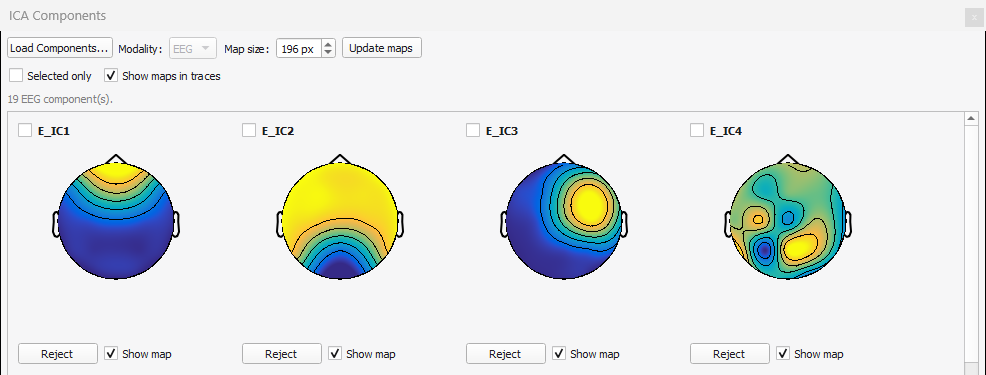
The window floats over AnyWave. You can also drag it to the left or to the right side of the main window, where it docks. The line under the options tells how many components of which type are loaded.
| Option | Effect |
|---|---|
| Load Components... | Loads another ICA, see ICA files. |
| Modality | The type of the components shown, when you loaded the ICA of several types (EEG and MEG, for instance). |
| Map size and Update maps | The size of all the maps, in pixels (from 110 to 220), in the cards and next to the traces. Set the size, then click Update maps. |
| Selected only | Shows only the cards of the selected components. Select a component by ticking the box at the top left of its card, or by clicking its trace in the view. |
| Show maps in traces | Shows or hides the maps next to the names of the traces. AnyWave remembers the choice for the next files. |
On each card:
- the box at the top left selects the component;
- Reject rejects it, and the button becomes Undo reject, see Reject components;
- Show map shows or hides the map in the card.
Tip
When the maps hide the traces in the view, hide them with Show maps in traces and look at them in the window instead, or make them smaller with Map size.