Add a subject
A database is organised by subject: before you can import a recording, the subject it belongs to must exist in the database.
Open the dialog
There are three ways to reach the same Add Subject to Database dialog:
- Database > Add Subject to Database...
- a right-click in the BIDS panel, on any subject or on the empty space below the list, then Add Subject...;
- from the Add File(s) to Subject dialog, when the database has no subject yet (AnyWave then offers an Add Subject... button).
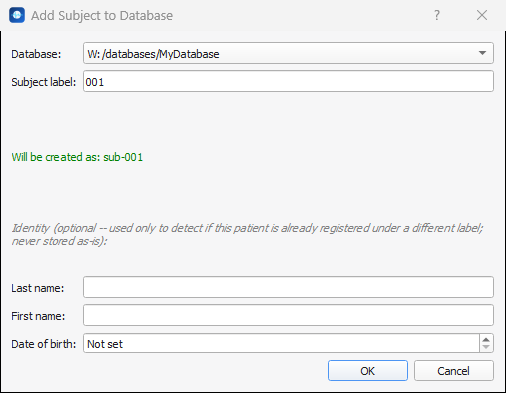
Fill in the dialog
| Field | What to enter |
|---|---|
| Database | The database that receives the subject. When a database is open in the BIDS panel, this field is locked on that database. Otherwise it lists your registered databases. If none is registered, AnyWave offers to open the Preferences so that you can create one. |
| Subject label | The label of the subject. AnyWave suggests the next free number (001, 002...). A label can only contain letters and digits — no spaces, accents or punctuation. The line below the field shows what will be created: Will be created as: sub-001. It turns red when the label is not valid, and OK stays disabled. |
| Last name, First name, Date of birth | Optional. See Identity below. |
| Additional subject information | Appears only for databases that declare extra participant fields (see Extra participant fields). |
Click OK. AnyWave:
- creates the folder
sub-<label>in the database; - adds a row for the subject to
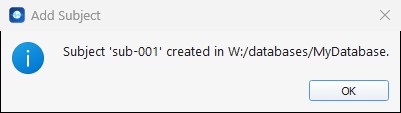
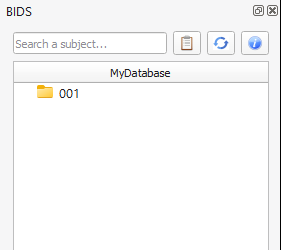
participants.tsv; - confirms with a message, and shows the subject in the BIDS panel. If nothing was open in AnyWave, the database is opened for you.
Tip
A label is just a name: use the numbering that fits your project (001, P12...). It is the part after sub-.
Choose it carefully, since it is part of every file name of the subject.
Identity (optional)
The three identity fields — Last name, First name and Date of birth — are not required. They are there to help you avoid registering the same patient twice, and to check the recordings you import later.
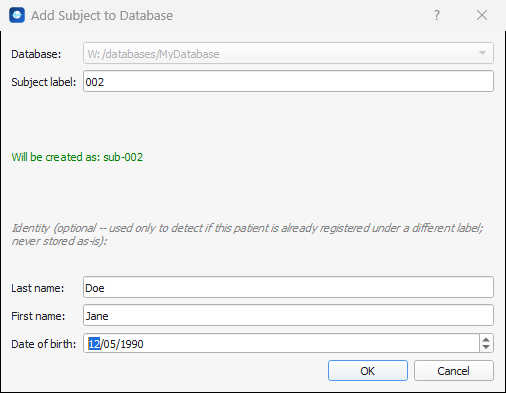
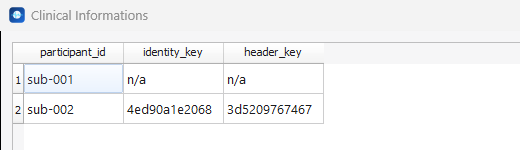
- Nothing is stored in clear. AnyWave turns the identity into two hash values,
identity_key(last name, first name and date of birth) andheader_key(last name and first name only), and keeps only those inparticipants.tsv. They are computed with a random value specific to the database, so the same patient gets different values in two different databases. When no identity is entered, both columns containn/a.
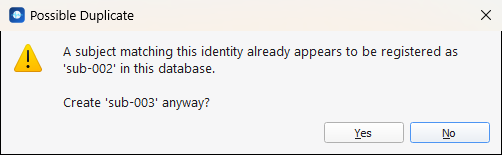
- Duplicate detection. If all three fields are filled in and a subject of the database already has the same identity, AnyWave warns you before creating the new subject. Answer No to cancel, or Yes to create it anyway.
- Check at import time. When you add recordings to a subject that has an identity, AnyWave compares it with the patient name found in the header of the file, if the file contains one, and warns you if they differ.
Note
The date of birth field has no calendar: click one of its three parts (day, month, year) and type or use the arrows.
Extra participant fields
Some databases define additional information to collect for each subject (sex, handedness, group...). These
fields are declared in the file code/requirements.json of the dataset (this is the convention of the
bidsificator tool). When the file exists, the dialog shows an Additional subject information section:
- a field with a list of choices is a drop-down; a field without a list is free text;
- fields marked with
*are required — OK stays disabled until they are filled in; - the values are added as columns of
participants.tsv.
For databases whose subject labels are hashes (those created with bidsificator), AnyWave computes the label for you from the identity as soon as the three identity fields are filled in.
Next
Add recordings to the subject: Add data.