The BIDS panel
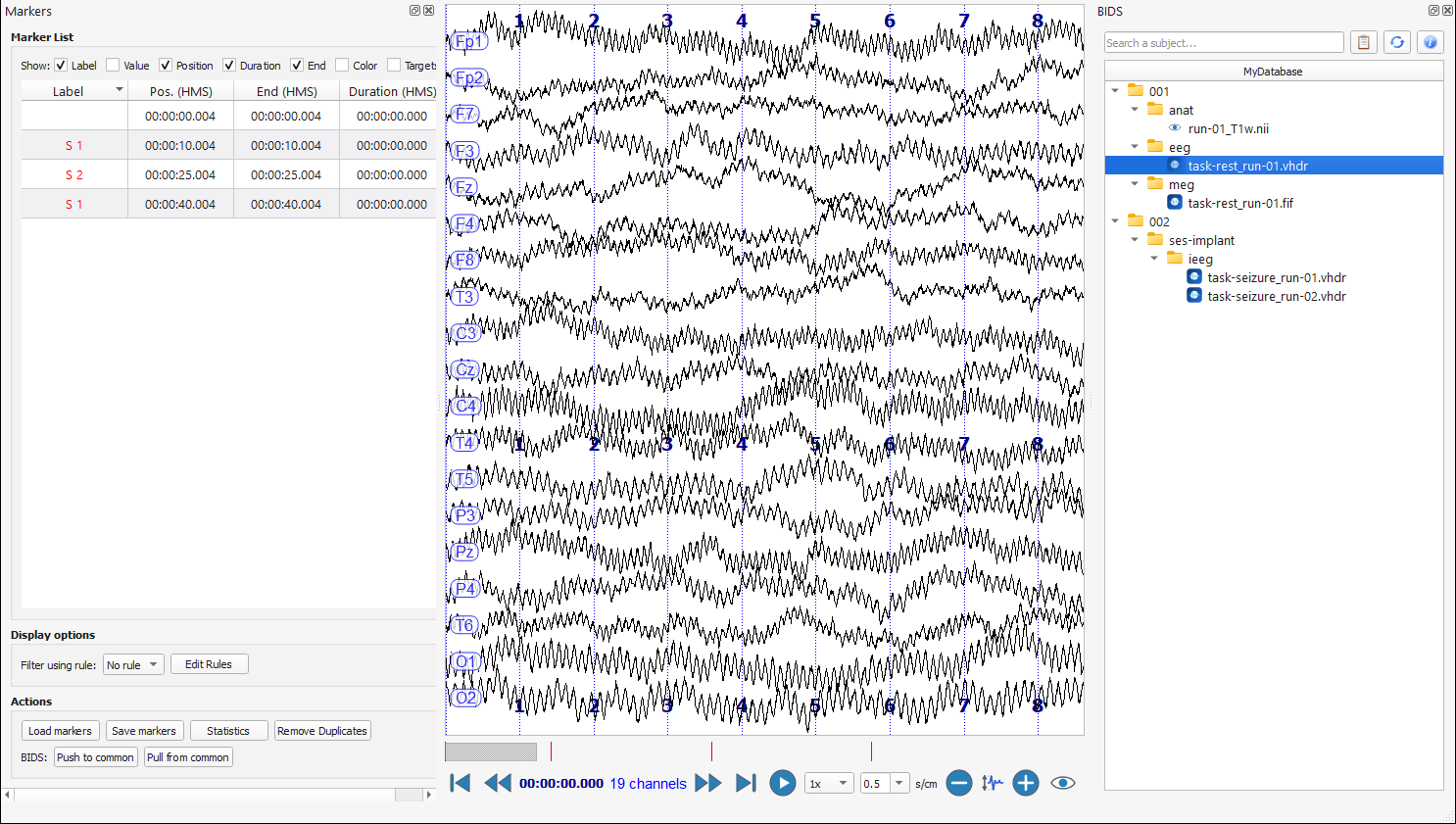
When a database is open, the BIDS panel is docked on the right of the main window. It shows the content of the database as a tree, and gives access to the most common actions. If you closed it, bring it back with View.
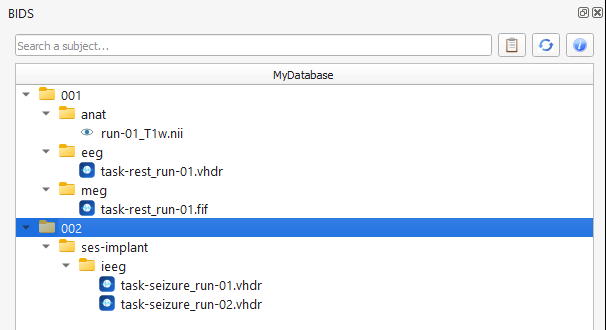
Reading the tree
- The title of the tree is the name of the database.
- Each subject is a folder, shown with its label (
001, without thesub-prefix). The content of a subject is read the first time you click it. - Under a subject you find its sessions (
ses-...), if it has any, and its modality folders (anat,eeg,ieeg,meg). - Under a modality folder are the runs, shown without the subject label:
task-rest_run-01.vhdr. Anatomical images show an eye icon; recordings show the AnyWave icon. - Results of the processes you run on a recording (for instance an ICA) appear as children of the run.
Open a recording
- Double-click a recording to open it in the main window, or right-click it and choose Load file. The recording that was open is closed first.
- The title of the AnyWave window then shows the path of the file in the database.
Anatomical images are not opened by a double-click. A right-click on a T1w image offers Launch FreeSurfer, which opens the FreeSurfer Reconstruction tool on this image.
Search a subject
Type the beginning of a subject label in the Search a subject... box at the top of the panel (with or without
sub-). The first matching subject is selected in the tree. Enter opens it; Up and Down move to the
previous and next match. The text turns red when nothing matches.
The three buttons
| Button | Action |
|---|---|
| First button (clipboard icon) | Build/refresh the subject SQL index for this database: the index used to search the database quickly. A progress bar under the tree shows the indexing. |
| Second button (refresh icon) | Re-reads from disk the subjects you have already opened in the tree (with several of them, AnyWave asks which ones). Use it after adding or changing files outside AnyWave. |
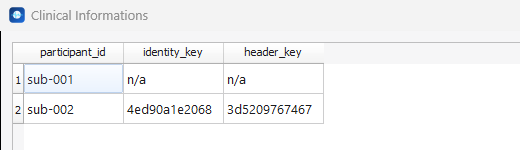
| Third button (information icon) | View clinical informations: opens participants.tsv as a table. |
The context menu
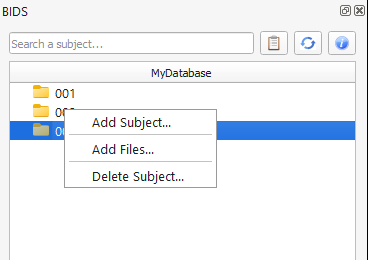
A right-click in the panel opens a menu whose content depends on what is under the cursor.
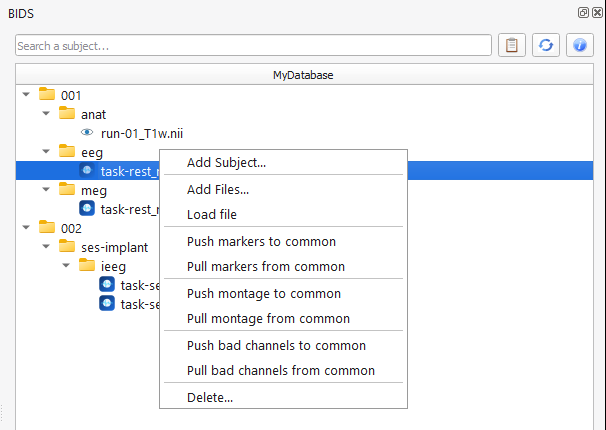
| Entry | Available on | What it does |
|---|---|---|
| Add Subject... | Everywhere, including the empty space | Opens Add Subject to Database. |
| Add Files... | A subject, or anything under it | Opens Add File(s) to Subject with the subject (and session) already chosen. |
| Load file | A recording | Opens the recording. |
| Push / Pull markers, montage, bad channels to / from common | A recording | Share your markers, montage and bad channels, see below. |
| Launch FreeSurfer | A T1w image | See above. |
| Show properties | A result of a process (for instance an ICA) | Shows the parameters saved with the result, in a window of its own. |
| Delete... | A recording or an image | Deletes it, see below. |
| Delete Subject... | A subject | Deletes the whole subject, see below. |
Sharing markers, montages and bad channels
AnyWave stores your markers, montage and bad channels in derivatives/anywave/<your user name>/. The folder
derivatives/anywave/common/ holds a copy that everyone working on the database can share.
- Push ... to common sends your current markers (or montage, or bad channels) to the common copy. For markers, the two lists are merged and duplicates are removed. AnyWave asks for confirmation first.
- Pull ... from common brings the common copy into your own files. For markers, the lists are merged. AnyWave asks for confirmation first.
If the recording is not the one that is open, AnyWave opens it first. The same two buttons (Push to common, Pull from common) are in the Markers panel while a recording of a database is open.
Deleting data
Deleting cannot be undone, which is why AnyWave always asks first, with No as the default answer.
- Delete... on a recording removes the run and its side files. The confirmation also lists the results (ICA...) linked to the run, because they are deleted along with it.
- Delete Subject... removes the whole subject: its raw data, its derivatives, its row in
participants.tsvand its entries in the index. The confirmation lists the folders concerned, with their sizes. If the recording that is open belongs to this subject, it is closed.
Warning
Nothing goes to a recycle bin: make a backup of a database before cleaning it.