Several views
A recording can be displayed in more than one view at the same time. Each view has its own navigation bar, time scale and gain, and shows the channel types you chose for it. Typical uses:
- an overview of a long stretch of time at a large time scale, next to a detail at a small one;
- different kinds of signals (for instance EEG and ECG, or MEG and EEG), each with the gain that suits it;
- the same recording at two different positions.
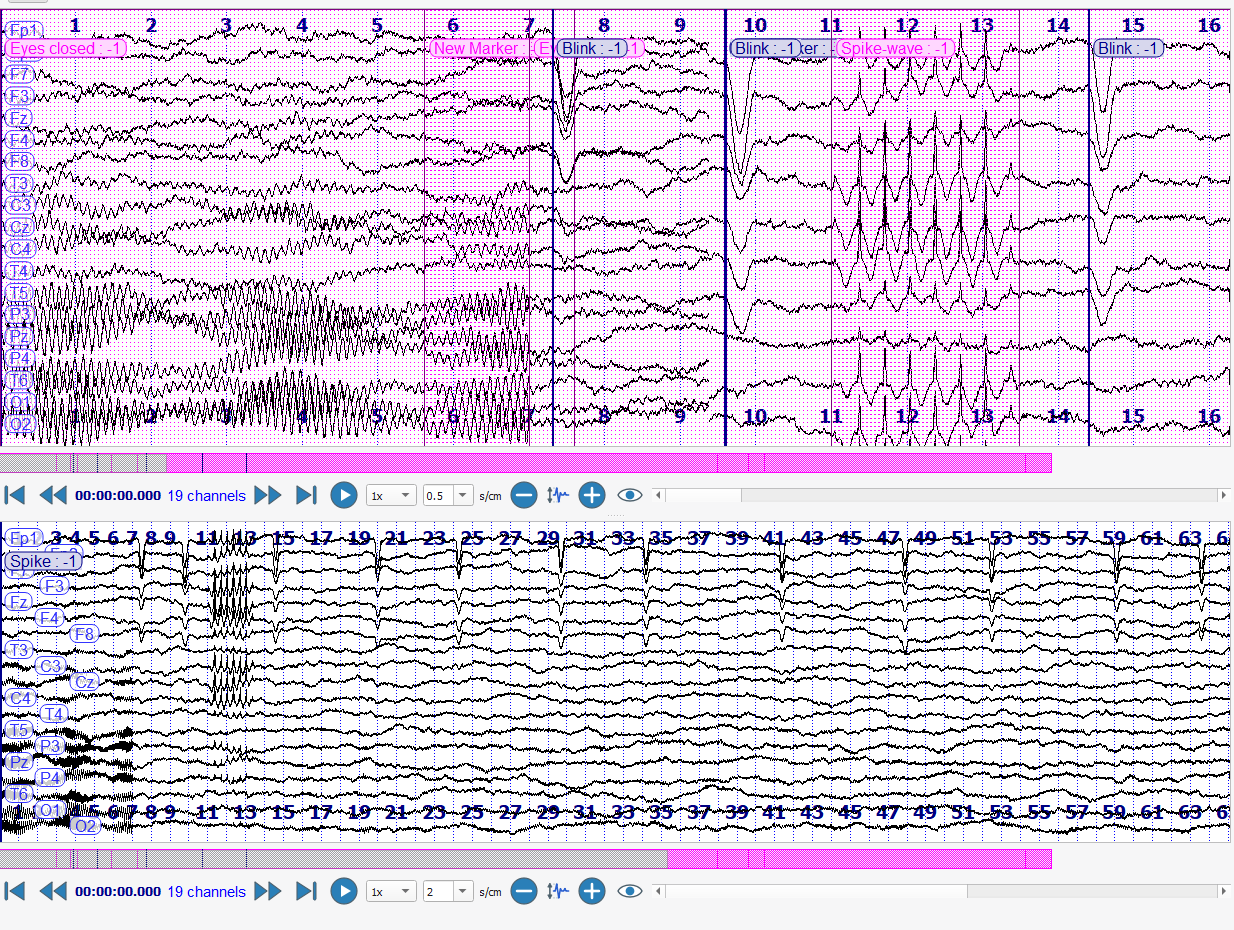
Add a view
- Click Add View in the toolbar.
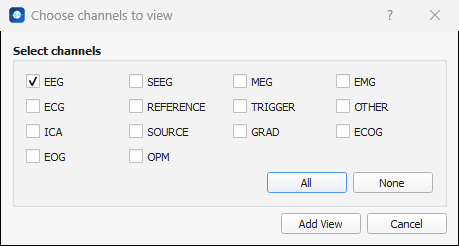
- In the window Choose channels to view, tick the types of channels the new view will show. All ticks them all, None unticks them all.
- Click Add View.
The new view appears under the first one. Its navigation bar works on its own: here the second view uses a time scale of 2 s/cm and a smaller gain than the first.
Align the views
The small arrow at the right of the Add View button chooses how the views are laid out:
- Align Horizontally: the views are one above the other (the default);
- Align Vertically: the views are side by side.
Synchronize the views
The Sync button, when it is on (it looks pressed, and it is on by default), keeps the views synchronized: moving through the recording in one view moves the others to the same position. Switch it off to look at two different places of the recording.
Close a view
Right-click in the view you want to close, and choose View > Close view.