Markers
A marker tags an event or a stretch of time in a recording: a blink, a spike, the moment the eyes close, a stimulus, an artefact to reject. Markers are what you look for, count and export, and what the processes (ICA, detectors...) use to know where to work.
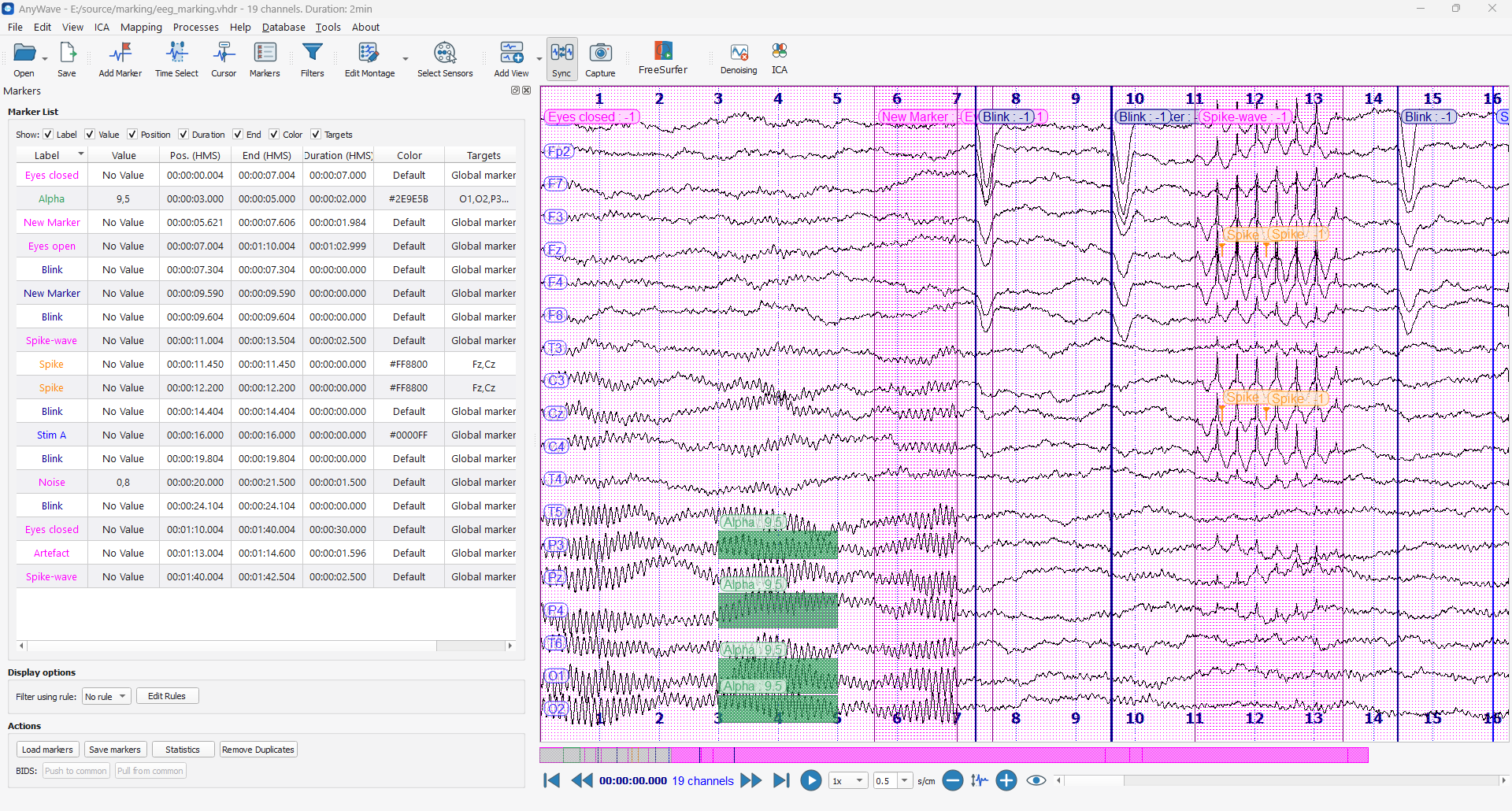
What a marker is
| Property | What it is |
|---|---|
| Label | The name of the marker (Blink, Spike...). Markers with the same label are the same kind of event. |
| Value | An optional number: a frequency, an amplitude, a trigger code... Shown as No Value when the marker has none. |
| Position | Where the marker starts, in seconds from the beginning of the recording. |
| Duration | How long it lasts, in seconds. 0 for a single event. |
| Color | Optional. A marker without color is drawn with the default one. |
| Targets | Optional. The channels the marker is about. A marker without targets is global: it concerns all the channels. |
Two kinds of markers follow from the duration:
- a single marker has no duration: it is drawn as a vertical line, in dark blue by default;
- a selection has a duration: it is drawn as a shaded band, in magenta by default.
A marker with targets is drawn on its channels only: a small arrow for a single marker, a colored block over the targeted channels for a selection.
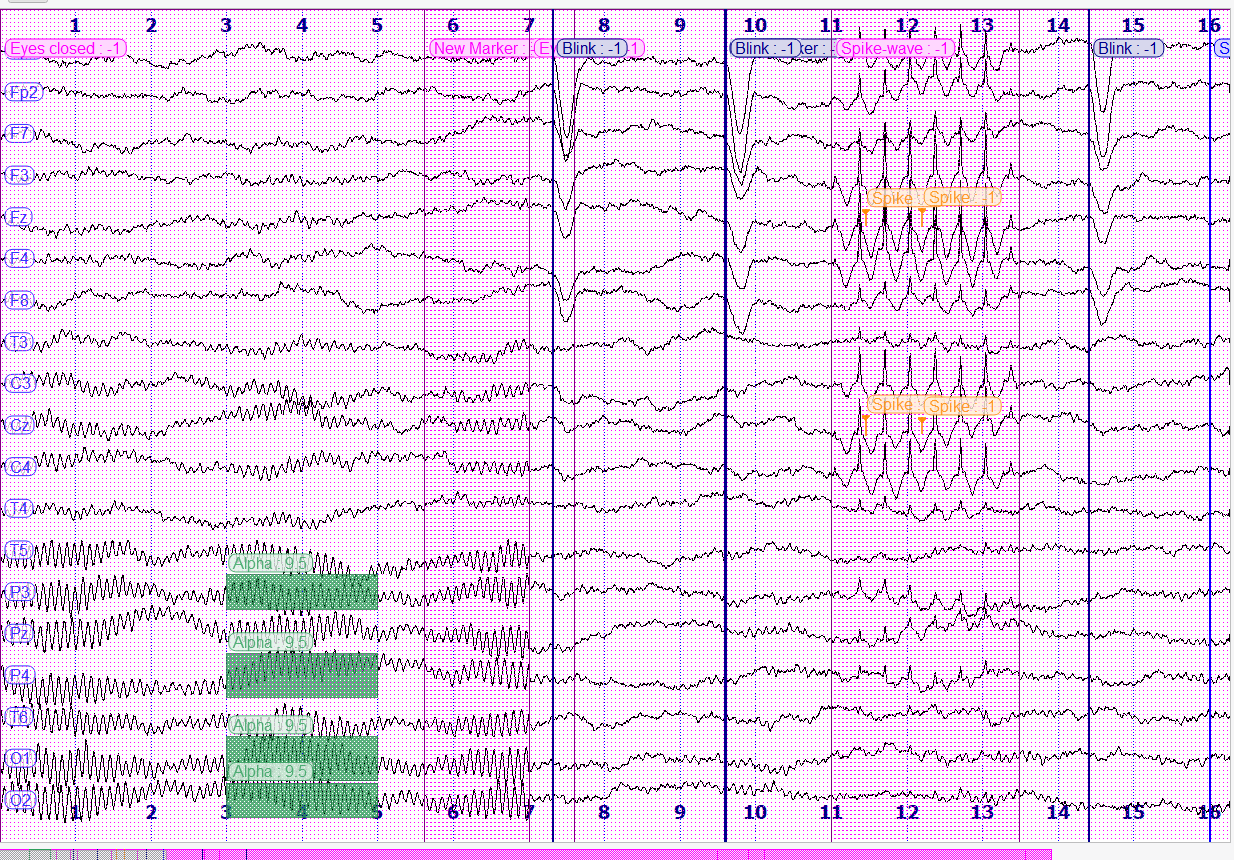
In this recording, Blink markers are single, global markers; Eyes closed and Spike-wave are global
selections; the two Spike markers target Fz and Cz; the Alpha selection targets O1, O2, P3 and P4.
Where markers come from
- The recording itself. Many formats carry markers (the
.vmrkfile of BrainVision, annotations of EDF files, triggers...). AnyWave lists them when you open the recording. The recording file is never modified. - You. Add markers with the mouse while you read the signal.
- A marker file. Load a
.mrkfile made by AnyWave, by a colleague or by a script. - A process. Detectors and other processes send the markers they found.
- The BIDS events of a database. The first time you open a recording of a
BIDS database, its
events.tsvbecomes your list of markers.
Show the markers
- The Markers button of the toolbar opens and closes the marker list.
- The markers bar, above the navigation buttons, draws the markers in their colors and lets you jump to them, see Navigation.
- In the signal view the markers are hidden by default. Right-click in a view and choose Display markers, or tick Show in signal view in the View settings. Show label and Show value decide what is written next to each marker.
What is in this section
- Add markers: click, drag, target channels, the Adding Markers Tool.
- The marker list: read, sort, edit, rename, remove, count your markers.
- Filter rules: show only the markers that match a condition.
- The .mrk file format: the file AnyWave reads and writes, column by column.
- Marker files, import and BIDS: where your markers are kept, how to exchange them.