Quick montages and saved montages
Most of the time you want one of a handful of standard montages. AnyWave offers them in two places, always one click away: above the montage in the editor, and in the menu of the Edit Montage button.
Quick montages in the editor
The Quick montages bar sits above the montage table of the editor. It only shows the buttons that make sense for the file: a recording without SEEG channels has no SEEG buttons.
| Button | What it builds |
|---|---|
| EEG average | Every EEG channel, with the reference AVG: each channel is displayed against the average of the EEG channels. |
| SEEG bipolar | Pairs of neighbouring contacts of the same electrode: A1–A2, A2–A3... A contact without a next contact has no pair. |
| SEEG average | Every SEEG channel, with the reference AVG. |
| ECoG bipolar... | For ECoG recordings: opens a window in which you describe the grid or the strip, and builds the bipolar channels from it. |
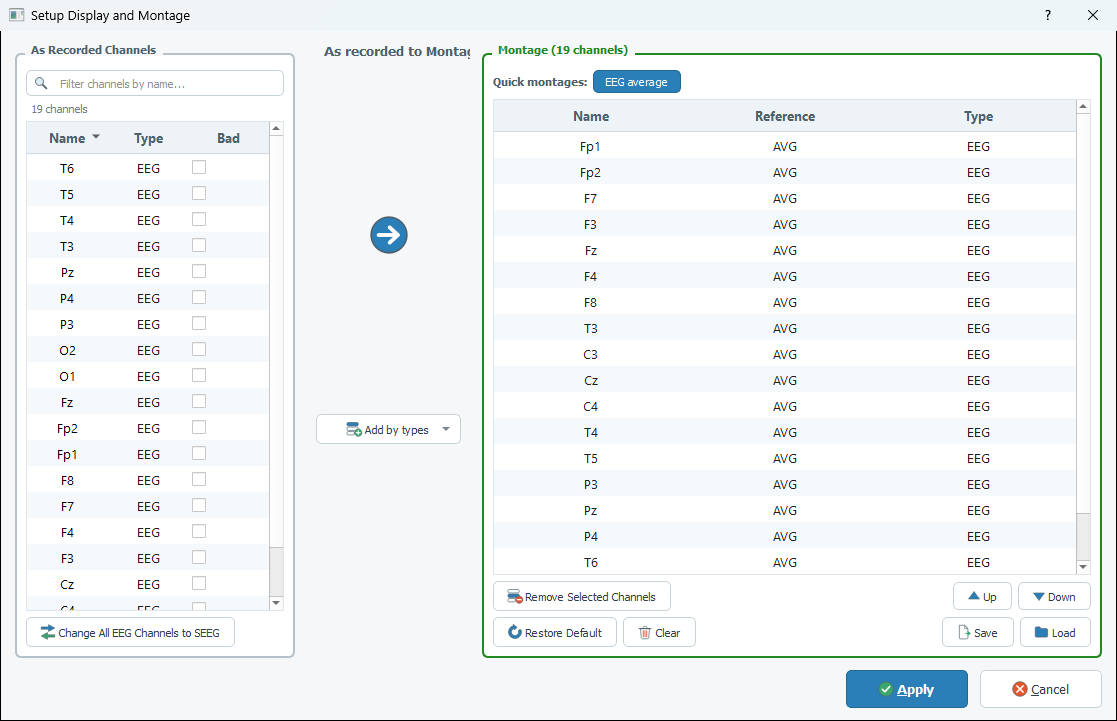
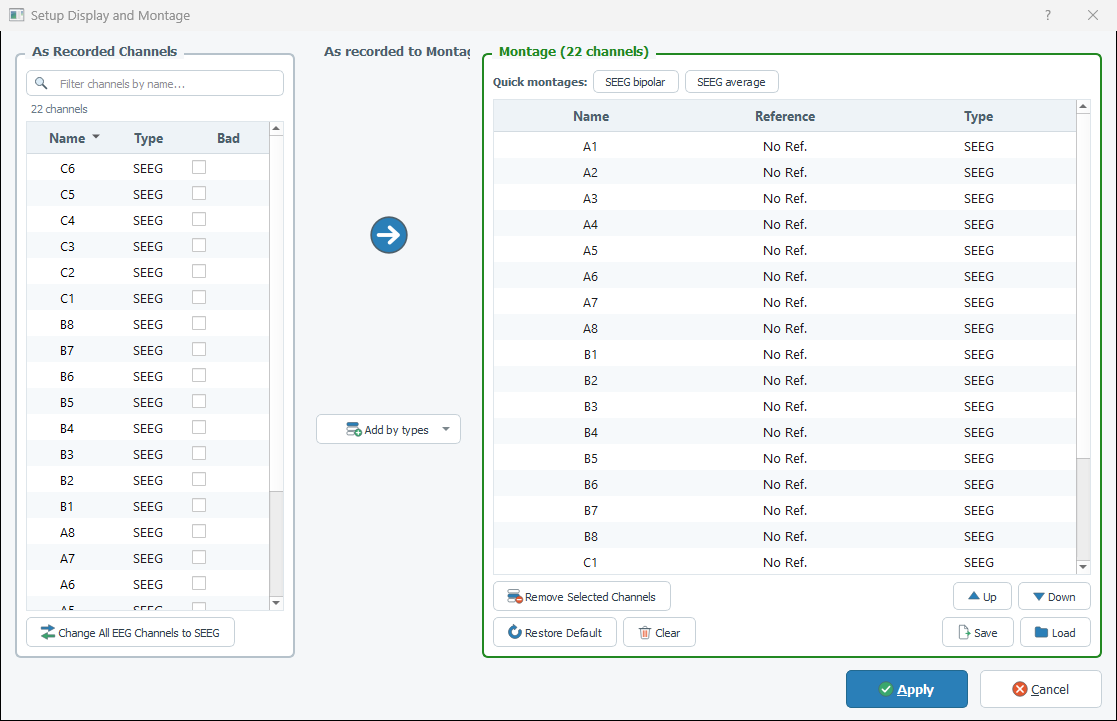
A quick montage:
- rebuilds only the channels of its type: the other channels of the montage are kept as they are (an EEG + MEG file keeps its MEG channels when the EEG ones are re-referenced);
- leaves the bad channels out, and every pair that contains a bad contact;
- can be applied twice with the same result;
- is shown highlighted when the montage already is what the button would build.
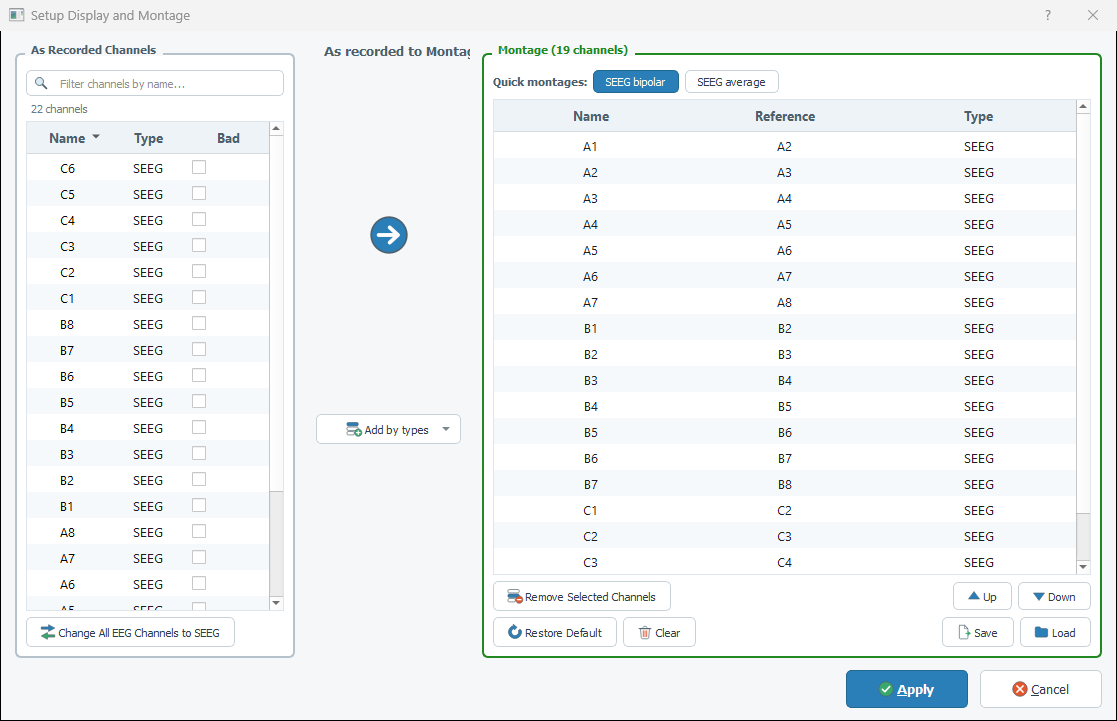
A button is greyed out when there is nothing to build it from (all the channels of that type are bad). Its tooltip says why. Like every change of the editor, a quick montage is only kept when you click Apply.
Tip
If your SEEG recording was stored as EEG, the SEEG buttons are not offered: use Change All EEG Channels to SEEG first (see Change the type of channels).
The quick menu of the toolbar
The small arrow at the right of the Edit Montage button opens a menu that applies a montage immediately, without opening the editor.
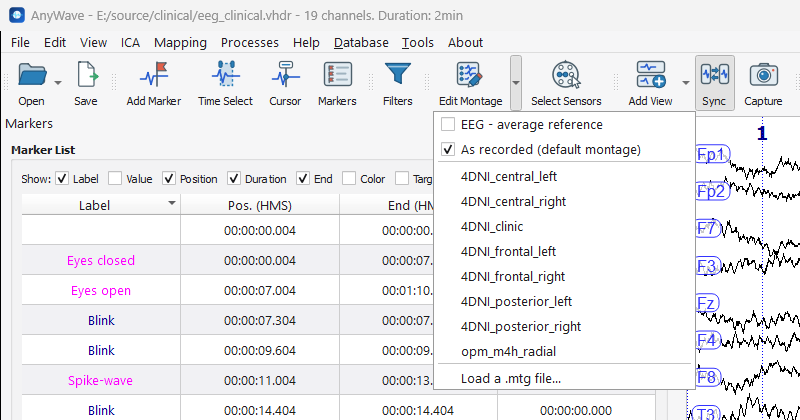
- The first entries are the same standard montages (
EEG - average reference,SEEG - bipolar,SEEG - average reference), limited to what the file offers. A check mark shows the one that is active. - As recorded (default montage) goes back to the default montage of the file.
- Then come your saved montages, by name.
- Load a .mtg file... picks a montage file anywhere on your disks.
The choice is saved with the data file, like any montage, and found again when you reopen it.
Save and load a montage file
Once you have a montage that you will want again (for instance on every recording made with the same system), save it:
- In the editor, click Save.
- Give it a name. AnyWave proposes its Montages folder.
- A message confirms: Montage saved.
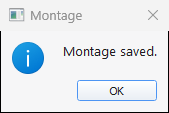
The montage is saved as a .mtg file. Montages found in the following two folders appear by name in the quick menu:
| Folder | Where |
|---|---|
| Your Montages folder | Documents\AnyWave\Montages on Windows, AnyWave/Montages in your home folder on macOS and Linux. It is created by AnyWave. |
The montages folder of the AnyWave installation |
Montages delivered with AnyWave. |
A montage saved somewhere else is not listed, but Load a .mtg file... (menu of the toolbar) and Load (editor) read it.
Load, in the editor, reads a .mtg file into the editor: nothing changes in the views until you click
Apply. The channels of the file that are not in the recording, or that are flagged bad, are skipped; when none
can be loaded, a message says so. The types stored in the file are applied to the channels of the recording.
Note
A montage file stores, for each channel, its name, type, reference, color and filters. Because a file only refers
to channels by name, a montage built for one system (A1... of a 4D MEG) is not meant for another one.