Navigation
Under the traces, two bars let you move through the recording: the markers bar and the navigation bar.
The navigation bar

From left to right:
| Control | What it does |
|---|---|
| First (single arrow, bar on its left) | Goes to the beginning of the recording (Shift+Left). |
| Previous page (double arrow, pointing left) | Goes back by one page. |
| Time and channels | The time of the left edge of the view (hh:mm:ss.mmm; point at it to read the duration of a page), the number of channels in the view and, in red, how many are selected. |
| Next page (double arrow, pointing right) | Goes forward by one page. |
| Last (single arrow, bar on its right) | Goes to the end of the recording (Shift+Right). |
| Play / pause and speed | Auto-scroll. |
Time scale (s/cm) |
Seconds per centimetre, see Display. |
| Gain (minus, traces icon, plus) | The amplitude of the traces, see Display. |
| Eye | The view settings. |
| Scroll bar | Drag it to go anywhere in the recording. |
A page is what the view shows at a time: its duration depends on the time scale and on the width of the view, so one click on a double arrow moves by the duration you see, not by a fixed time. Each of the views of Several views has its own navigation bar.
The markers bar
The bar just above the navigation buttons draws the markers of the recording, in their colors. It works in two modes. You choose the mode in the view settings (Markers Bar), or by right-clicking the bar, which also lets you show or hide the markers in the view (Show markers, Hide markers).
- Global mode (the default). The bar represents the whole recording. A gray frame shows the part you are looking at. Click anywhere in the bar to go there, or drag the frame to scroll through the recording.
- Classic mode. The bar is aligned with the traces and shows the markers of the current page only. Point at a marker to see its label.
Auto-scroll
The play button scrolls the recording by itself, like a tape. Click it again to pause. The list next to it sets
the speed: 1x is real time, 0.5x is twice slower, and 2x, 4x and 8x are faster.
Go to a given time or marker
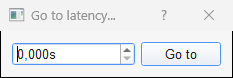
- Right-click in the view > Go to latency... asks for a time in seconds, then Go to.
- Double-click a marker in the marker list to bring the views to it, or right-click it and choose Center views on this marker.
- Right-click in the view > Go to channel scrolls to a channel, which is useful when the recording has more channels than the view can show.
Keyboard
| Key | Effect |
|---|---|
| Right, Space | Next page. |
| Left | Previous page. |
| Shift+Right, Shift+Left | End and beginning of the recording. |
While the Add Marker mode is on, Right and Left move by one second only (0.1 s when the time scale is below 0.1 s/cm), so that the part you are marking stays on the screen.