Add data: EEG, iEEG (sEEG), MEG and anatomy
The Add File(s) to Subject dialog imports recordings and images into a subject of the database. For each file, AnyWave:
- copies or converts it into the database under a BIDS name (
sub-001_task-rest_run-01_eeg.vhdr...); - writes the BIDS side files (
.json,channels.tsv,events.tsv...); - keeps the markers found in the source file.
Your source files are left untouched: AnyWave works on copies.
Open the dialog
- Database > Add File(s) to Subject..., or
- right-click a subject (or anything below it) in the BIDS panel, then Add Files.... The subject — and the session, if you clicked inside one — are filled in for you.
A database must be open and must contain at least one subject. If not, AnyWave says so and, for a database with no subject, offers a shortcut to add one.
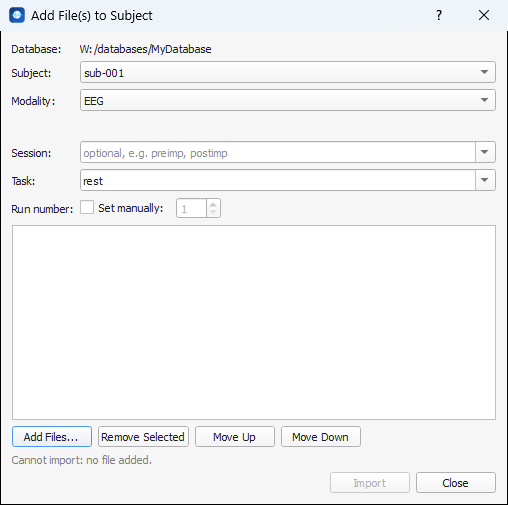
The common fields
| Field | What to enter |
|---|---|
| Database | The open database (read-only). |
| Subject | The subject that receives the files. |
| Modality | EEG, iEEG, MEG or Anat (MRI/CT). The fields below the modality depend on this choice. |
| Session | Optional, for instance preimp or postimp. Letters and digits only; typing the ses- prefix is optional. Existing sessions of the subject are offered. |
| Task | The name of the task, for instance rest, seizure or clinical; letters and digits only. The tasks the subject already has for this modality are offered. Not used for anatomy. |
| Run number | Chosen by AnyWave: the next free number for this subject, session, task and modality. Check Set manually to choose the first number yourself, for instance to fill a gap. AnyWave refuses a number that already exists (run-02 already exists). |
Then build the list of files to import:
- Add Files... (the exact label depends on the modality) opens a file picker, in which you can select several files. Click it again to add more.
- Remove Selected removes the selected rows from the list.
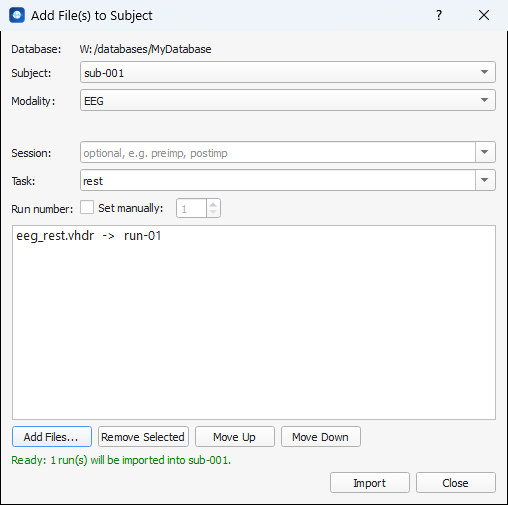
- Move Up / Move Down change the order. Run numbers follow the order of the list: the top row gets
the lowest number. The files are sorted by name (numbers taken into account) when you add them, and the list
shows the run each file will become, for instance
eeg_rest.vhdr -> run-01.
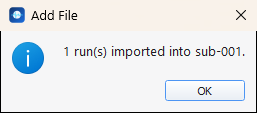
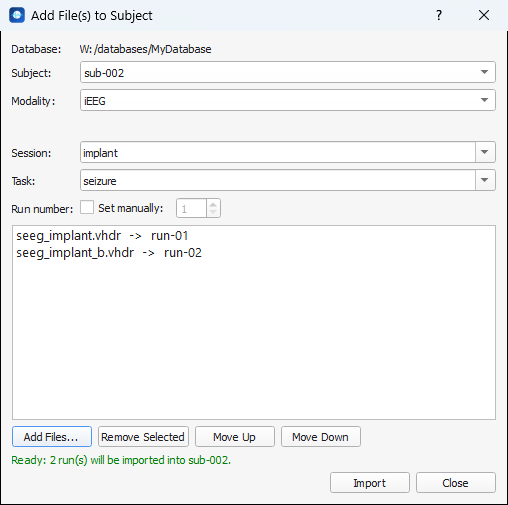
The line under the list says whether the import can start. Ready: 2 run(s) will be imported into sub-002. turns green when everything is correct; otherwise Cannot import: lists what is missing (no file added, task label invalid...). Click Import to start. A progress window shows the file being converted, then a message reports how many runs were imported. The dialog stays open so that you can import more data; Close when you are done.
Note
Changing the Modality (or, for MEG and anatomy, the format options) empties the list, because a file only makes sense for the modality it was added under.
EEG
Choose EEG for scalp recordings.
- Select the subject; set the session and the task if needed.
- Click Add Files... and select one or more recordings. Any format that AnyWave can open is accepted.
- Check the list, then click Import.
The recording is stored in the BrainVision format (.vhdr, .eeg, .vmrk); a file that already is a BrainVision
recording is copied as it is. The channels are listed in channels.tsv, the markers in events.tsv.
sub-001/eeg/
├── sub-001_task-rest_run-01_eeg.vhdr    (+ .eeg and .vmrk)
├── sub-001_task-rest_run-01_eeg.json
├── sub-001_task-rest_run-01_channels.tsv
└── sub-001_task-rest_run-01_events.tsv
iEEG (sEEG, ECoG)
Choose iEEG for intracranial recordings: stereo-EEG (sEEG) or ECoG. It works exactly like EEG, and the
recordings go to the ieeg folder of the subject. The screenshot imports two recordings in one go, into the
session implant, task seizure:
sub-002/ses-implant/ieeg/
├── sub-002_ses-implant_task-seizure_run-01_ieeg.vhdr    (+ .eeg and .vmrk)
├── sub-002_ses-implant_task-seizure_run-01_ieeg.json
├── sub-002_ses-implant_task-seizure_run-01_channels.tsv
├── sub-002_ses-implant_task-seizure_run-01_events.tsv
└── ... the same four files for run-02
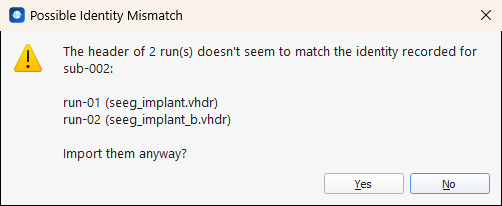
If the subject was created with an identity and the header of a file contains a different patient name, AnyWave lists the runs concerned and asks whether to import them anyway (Yes) or to skip them (No). The check only concerns files whose header contains a patient name.
MEG
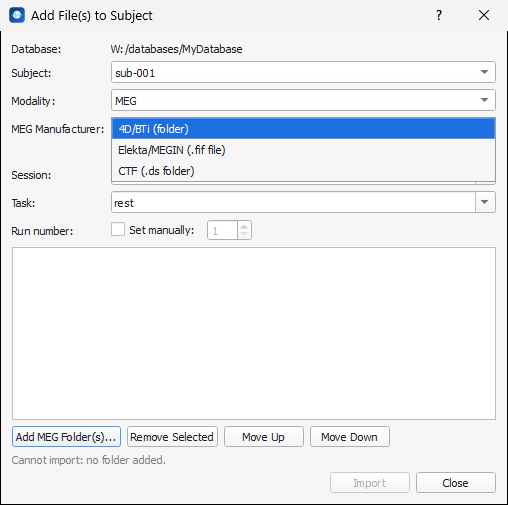
Choose MEG, then the MEG Manufacturer of your recording:
| Manufacturer | What you select | What is imported |
|---|---|---|
| 4D/BTi (folder) | Add MEG Folder(s)... — one folder per run. You can select several folders at once. | The folder (it contains config and the recordings named <letter>,<processing>, for instance e,rfhp1.0Hz) is copied into the database. A run folder often holds several processed versions of the same acquisition: only one recording per folder is imported, and the others are listed in the log. |
| Elekta/MEGIN (.fif file) | Add Files... — one or more .fif files. |
The .fif file. One acquisition folder often holds several runs, which is why you choose the files and not the folder. |
| CTF (.ds folder) | Add MEG Folder(s)... — one .ds folder per run. |
The whole .ds folder. |
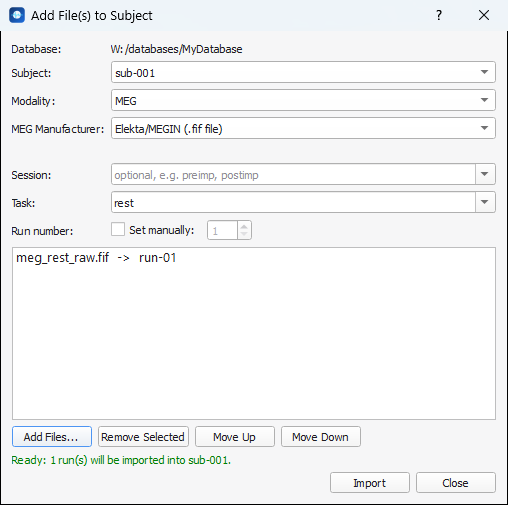
For a MEG run AnyWave also writes meg.json, channels.tsv, events.tsv (when the recording has triggers or
markers) and coordsystem.json; a 4D/BTi head-shape file is copied too when there is one.
sub-001/meg/
├── sub-001_task-rest_run-01_meg.fif
├── sub-001_task-rest_run-01_meg.json
├── sub-001_task-rest_run-01_channels.tsv
├── sub-001_task-rest_run-01_coordsystem.json
└── sub-001_task-rest_run-01_events.tsv
Warning
A FIF recording that was split into several files (name.fif, name-1.fif...) cannot be imported yet:
AnyWave refuses it rather than import a truncated run, and nothing is imported. Details are written in the
log (View > Debug logs).
Anatomy (MRI, CT)
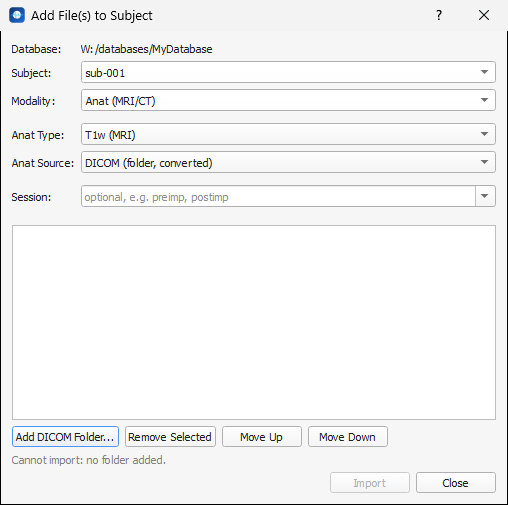
Choose Anat (MRI/CT) to add the images of the subject. There is no task for anatomy. Two extra fields appear:
- Anat Type: T1w (MRI), CT or T2w (MRI). Each type has its own run numbering.
- Anat Source: the format of what you import.
| Anat Source | What you select | What is imported |
|---|---|---|
| DICOM (folder, converted) | Add DICOM Folder... — a folder holding one DICOM series. | The series is converted to NIfTI (.nii.gz) and a complete .json file is written, with the acquisition parameters (TR, TE, manufacturer...). This is the recommended source. |
| Already NIfTI (.nii/.nii.gz file) | Add NIfTI File(s)... — one or more .nii or .nii.gz files. |
The file is copied as it is. The .json file only contains the modality, unless a .json file with the same name sits next to the NIfTI file, in which case it is used. |
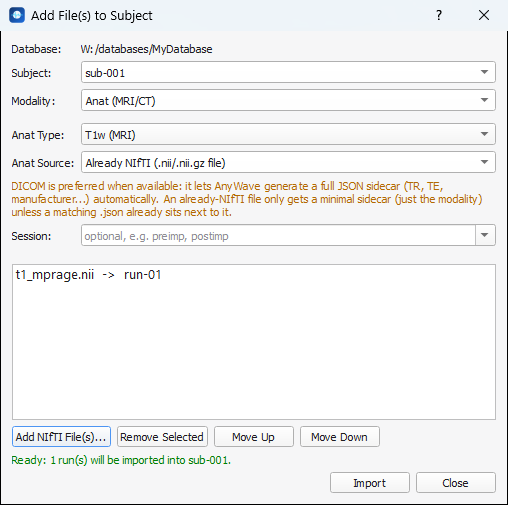
sub-001/anat/
├── sub-001_run-01_T1w.nii
└── sub-001_run-01_T1w.json
Once a T1w image is in the database, a right-click on it in the BIDS panel offers Launch FreeSurfer, which opens the FreeSurfer Reconstruction tool on this image (the entry is offered only while the subject has no FreeSurfer folder).
When something goes wrong
- The Import button is disabled. Read the line under the list: it names what is missing or invalid (no database open, no subject, no file, an invalid task or session label, a run number that already exists).
- A message says that only some runs were imported. The message lists the files that failed. The details of each error are in the log window (View > Debug logs). The runs that succeeded are in the database; fix the problem and import the others again.
- A file is not recognised. For EEG and iEEG, the file must be readable by AnyWave: try opening it with File > Open first. For MEG, only the 4D/BTi, Elekta/MEGIN FIF and CTF formats can be imported into a database.
- A run got the wrong number. Run numbers follow the order of the list: use Move Up / Move Down before clicking Import, or check Set manually.