Marker files, import and BIDS
Where your markers are kept
You never have to save your markers: every change (adding, editing, removing, loading) is written at once, in a
.mrk file stored next to the recording. It has the name of the recording followed by .mrk:
D:\Data\subject01\
├── eeg_marking.vhdr
├── eeg_marking.eeg
├── eeg_marking.vmrk
└── eeg_marking.vhdr.mrk      your markers
When you open the recording again, the markers are read from this file. The recording itself, and the markers it
carries (here the .vmrk file), are never modified. The format of the file is a simple text
format, so you can open it in any text editor.
Note
The same folder holds the other files AnyWave writes for a recording: the montage (.mtg), the bad channels
(.bad), the filters (.flt) and the display settings (.display).
Load a marker file
To add the markers of a .mrk file to the recording (made by a colleague, by a script, or from another recording),
click Load markers in the marker list, or choose File > Import marker file.
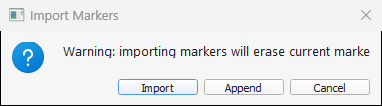
AnyWave first asks what to do with the markers you already have:
- Import replaces them: all the current markers are removed, and only the ones of the file remain.
- Append keeps them and adds the ones of the file.
- Cancel stops here.
Then you pick the .mrk file. If it holds no marker that AnyWave can read, you get the message The marker file is
empty or invalid, and nothing changes (see the rules of the format if the
file should have worked). If some of the markers of the file were already in the recording, AnyWave removes the
duplicates and tells you how many.
Save markers to a file
- Save markers (under the list) writes all the markers to the
.mrkfile you choose. Use it to keep a copy, or to give your markers to someone. - To save only some of them, select their rows in the list, right-click and choose Export > Save markers to .mrk file.
Markers in a BIDS database
When a recording is opened from a BIDS database, your markers are kept in your own folder of the database, with the montage and the other settings:
derivatives/anywave/<your user name>/sub-003/eeg/sub-003_task-rest_run-01_eeg.vhdr.mrk
Each user has a folder of their own: your markers never overwrite a colleague's.
First opening
The first time you open a recording, the events of its events.tsv become your markers. From then on, your
.mrk file is the one that is read, and events.tsv is not read again: the events do not pile up.
Share markers with the other users
Push to common and Pull from common (under the marker list, enabled while a recording of a database is
open) share markers between the users of the database. The shared copy is in derivatives/anywave/common/.
- Push to common asks Send current markers to the common file? and merges your markers into the common ones, removing the duplicates.
- Pull from common asks Get common markers and merge them? and merges the common markers into yours, removing the duplicates.
The same commands are in the context menu of a recording in the BIDS panel.
Adding a recording to a database
When you add a recording to a database, AnyWave keeps a copy of all the markers it found for it (the ones of
the recording and the ones of its .mrk file) as <recording>_original.mrk in your derivatives folder.
Markers and processes
Processes can read the markers (for instance to work on every Spike-wave) and send new ones: a detector adds the
markers it found to your list. You launch a process on some markers from the context menu
of the marker list (Launch process). The plugins written in
MATLAB or Python get and send markers with the
same data: label, value, position, duration, color and targets.