FreeSurfer Reconstruction — User Guide
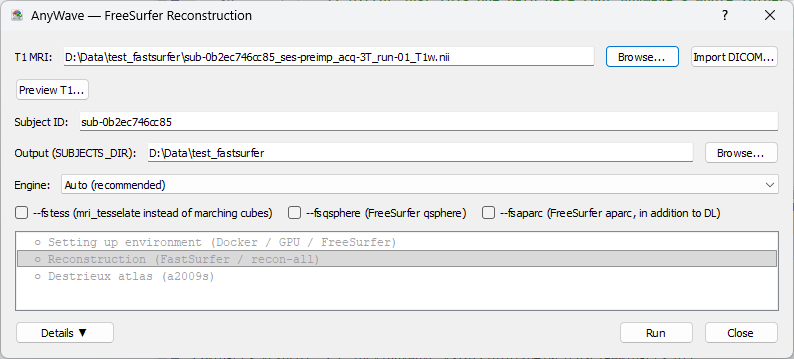
This standalone tool takes a T1-weighted MRI (NIfTI or DICOM) and produces a complete FreeSurfer
subject folder — the cortical surfaces, volumetric segmentation, and parcellation atlases used
throughout AnyWave (Viewer3D, GARDEL, Head Model / BEM generation). It runs the reconstruction via
FastSurfer (GPU-accelerated, a few minutes) when possible,
with an automatic fallback to native FreeSurfer recon-all (CPU only, several hours) otherwise.
1. Launching
Toolbar button in AnyWave (FreeSurfer icon). The tool can also be launched from the command line for scripting/automation:
AwFreeSurferRecon.exe --input <T1 file or DICOM folder> [--output <SUBJECTS_DIR>] [--subject <id>]
Passing --input starts the reconstruction automatically as soon as the dialog opens (no further
clicks needed) — --output/--subject are optional overrides for the auto-detected values (see
below).
2. Selecting the T1
- Browse... — pick a NIfTI file (
.nii/.nii.gz) directly. - Import DICOM... — pick a folder containing a DICOM series; it is converted to NIfTI automatically (no separate DICOM viewer/converter needed).
Once a T1 is set:
- Subject ID is auto-derived from the file/folder name (BIDS sub-... pattern recognized
automatically) — editable if you want a different ID.
- Output (SUBJECTS_DIR) is auto-filled (BIDS derivatives/freesurfer folder if the T1 is part
of a BIDS dataset, otherwise the T1's own folder) — editable via Browse....
3. Previewing the T1
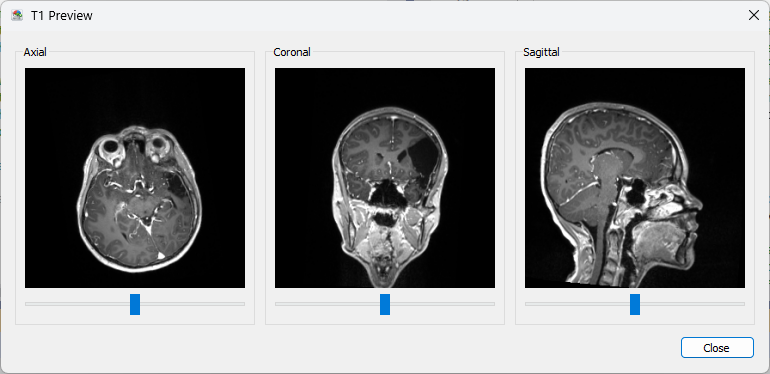
Click Preview T1... to open a quick 2D preview (axial/coronal/sagittal slices, with a slider per plane to scroll through the volume) before committing to a reconstruction. This is the recommended first step whenever the scan might show a post-surgical lesion or resection cavity — see Choosing the engine below for why that matters.
4. Choosing the engine
The Engine selector controls which reconstruction method is used:
| Option | Behavior |
|---|---|
| Auto (recommended) | Uses FastSurfer if Docker/GPU are available and ready, otherwise falls back to native recon-all. |
| Force FastSurfer | Only runs FastSurfer — fails with an explanation if Docker/GPU aren't ready, instead of silently falling back. |
| Force native FreeSurfer (recon-all) | Only runs native recon-all — fails with an explanation if no native FreeSurfer install/license is found. |
When to force native FreeSurfer: if the T1 preview (step 3) shows a post-surgical lesion or resection cavity, prefer native FreeSurfer over FastSurfer for that subject. FastSurfer's segmentation network is trained mostly on healthy anatomy and can behave unpredictably on atypical anatomy it wasn't trained for; native FreeSurfer's older, heuristic-based pipeline tends to degrade more gracefully in that situation (though neither is guaranteed "correct" on a resection cavity — there is no ground truth for what should be there).
5. Advanced FastSurfer options
Three checkboxes expose optional FastSurfer flags (only apply when the FastSurfer engine actually runs — they're greyed out when "Force native FreeSurfer" is selected):
| Option | Effect |
|---|---|
--fstess |
Uses FreeSurfer's classical mri_tesselate instead of FastSurfer's marching-cubes surface extraction. |
--fsqsphere |
Uses FreeSurfer's own spherical mapping instead of FastSurfer's faster spectral method. |
--fsaparc |
Also runs FreeSurfer's classical parcellation classifier alongside FastSurfer's deep-learning one. |
FastSurfer's own documentation marks all three "not recommended" (slower, no documented accuracy benefit) — they're provided here for experimentation, off by default. Note that none of them affect the separate Destrieux (a2009s) atlas step below, which always uses the classical classifier regardless.
6. Running
Click Run. Three steps are tracked:
- Setting up environment — checks Docker/GPU/native FreeSurfer/license depending on the chosen engine, and attempts to automatically install anything missing and fixable (Docker, nvidia-container-toolkit, the FastSurfer image, or a native FreeSurfer install) — once per click. A manually-obtained FreeSurfer license (registration page) is the one prerequisite that can't be installed automatically; set its path in AnyWave's Preferences > WSL.
- Reconstruction — the FastSurfer/
recon-allrun itself. - Destrieux atlas (a2009s) — an extra step that adds the Destrieux parcellation on top of a
FastSurfer run (FastSurfer's own output only includes the DKT atlas). Skipped automatically
when native
recon-allis used, since it already produces the Destrieux atlas natively.
Click Details ▼ to expand the log panel and follow progress line by line. The resulting subject folder appears in the chosen Output directory, ready to use in Viewer3D, GARDEL, or the Head Model / BEM pipeline.
Tips
- Run Preview T1 before every new subject, especially in a SEEG/epilepsy cohort where prior resections are common — it takes a few seconds and can save a reconstruction that would need to be redone with a different engine.
- The environment auto-setup only retries once per Run click — if it still isn't ready afterward (e.g. a FreeSurfer license still isn't set), fix the reported issue and click Run again.