[[TOC]]
Open data set
Click on the toolbar button to open a data set
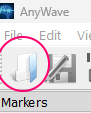
You can also use the File Menu
Open BIDS folder
Use the File Menu->Open BIDS option. Note that you can also open a BIDS data set if you manually open a data file which is within a BIDS folder. AnyWave will detect the file is part of a BIDS and then will open the BIDS folder.
Basic features
Montages
Markers
AnyWave Folders
The application will create several folders in the Home directory of the user:
- Documents\AnyWave on Windows
- /Users/username/AnyWave on macOS
- /home/username/AnyWave on Linux
They are several folders created by AnyWave but only some are usefull to know for the user.
Settings
This is the folder where AnyWave will put configuration and settings files. Do not delete or modify them.
However, this is also the place to create a user.json file to specify particular parameters AnyWave will use.
See Customise settings section.
Customise settings
AnyWave allows the user to change preferences using the Edit->Preferences menu.\ However, it is possible to customise some features using a user.json file that the user can put in the HOMEDIR/AnyWave/Settings folder.
MATLAB
On Linux and macOS AnyWave expects MATLAB to be installed on /usr/local and /Applications respectively.
If you have installed MATLAB and MATLAB Runtime in another location, please add a user.json file in AnyWave Settings folder:
{
"matlab_path" : "/path/to/MATLAB/including/Release folder",
"matlab_runtime_path" : "/path to RUNTIME including the Release foder"
}