Create, register or open a database
Databases are managed in Edit > Preferences, on the AnyWave DB tab. A database that appears in this list is said to be registered: it can then be opened with File > Open Database, and it is offered as a target by the commands of the Database menu.
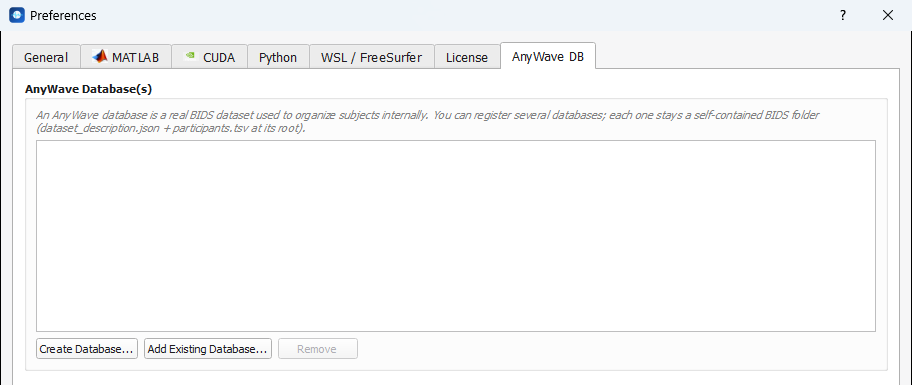
Create a new database
- Open Edit > Preferences and select the AnyWave DB tab.
- Click Create Database....
- Choose the parent folder in which the database will be created (for instance
D:\Data). - Type the database name, for instance
MyDatabase, and click OK.
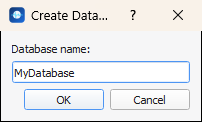
AnyWave creates a folder with that name inside the parent folder, and registers it:
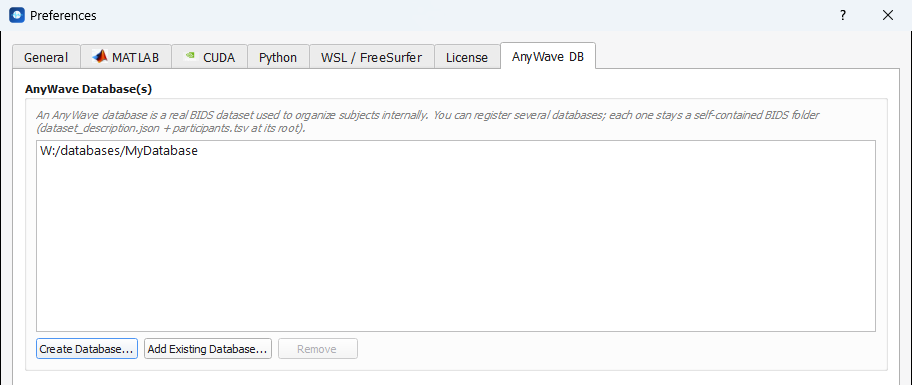
The new folder is an empty BIDS dataset:
MyDatabase/
├── dataset_description.json      {"Name": "MyDatabase", "BIDSVersion": "1.8.0", "DatasetType": "raw"}
├── participants.tsv              participant_id, identity_key, header_key  (no subject yet)
└── .anywave/
Tip
If the folder you name already is a BIDS dataset, AnyWave does not touch it: it just tells you so and registers it.
Register an existing BIDS dataset
This is how you "import" a database: a dataset that was created by AnyWave on another computer, or by any other BIDS tool, stays where it is — nothing is copied.
- Open Edit > Preferences and select the AnyWave DB tab.
- Click Add Existing Database....
- Select the root folder of the dataset: the folder that contains
dataset_description.json.
If this file is missing, AnyWave answers that the folder does not look like a BIDS dataset and registers nothing.
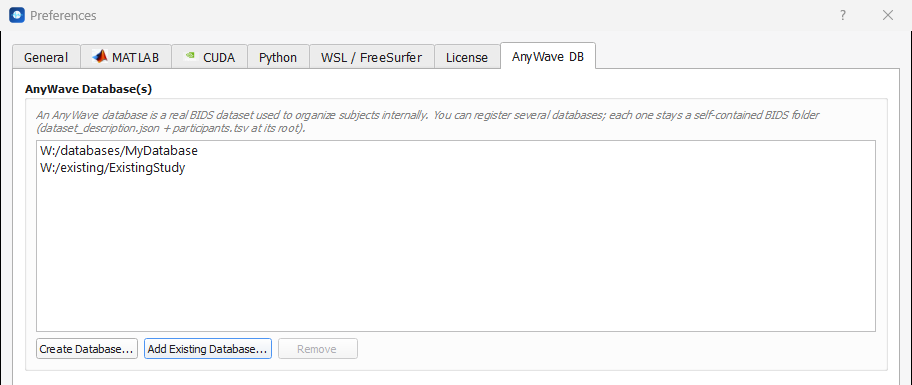
To forget a database, select it and click Remove. This only unregisters it from AnyWave: no file is deleted.
Note
The existing files of a dataset are left as they are. AnyWave adds its own files (.anywave/, and
derivatives/anywave/) when it needs them, and updates participants.tsv when you add a subject.
To bring recordings that are not in BIDS yet into a database, use Add a subject and then Add data. To copy subjects from one AnyWave database to another, use Database > Export Subjects....
Open a database
- File > Open Database opens one of the registered databases. With a single registered database it opens right away; with several, AnyWave asks which one:
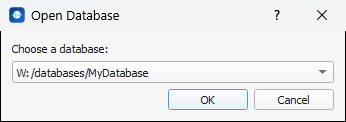
If no database is registered yet, AnyWave offers to take you to the AnyWave DB tab of the Preferences.
-
File > Open BIDS opens any BIDS folder, even one that is not registered. If the folder is not a BIDS dataset, AnyWave says so ("This is not a BIDS folder.").
-
File > Recent BIDS directories lists the databases and BIDS folders you opened recently.
The database appears in the BIDS panel, docked on the right of the main window. Its name is the title of the tree, and each subject is a folder:
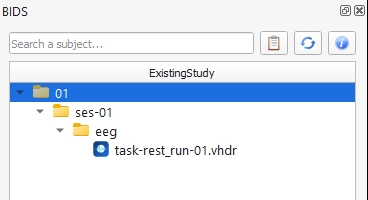
Note
Opening a database closes the recording that was open, as opening a file would do. Only one database can be open at a time.
Next: add a subject.