Filter rules
A recording can hold hundreds of markers. A rule is a saved question (show me only the blinks, only the
selections longer than 2 s, only the markers on T3) that you can apply to the marker list in
one click.
Apply a rule
Choose it in the Filter using rule list, under the marker list. The list now shows only the markers that match the rule. Choose No rule to see all the markers again.
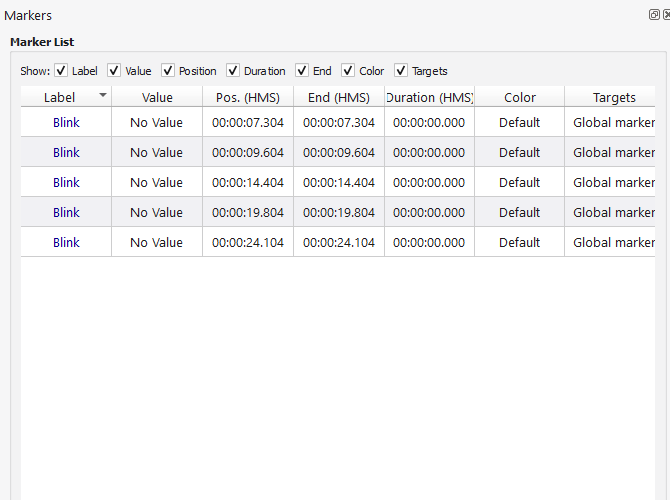
A rule only changes what the list shows. It never removes a marker.
Create a rule
- Click Edit Rules: the Marker rules window lists your rules and has the buttons New, Modify and Remove.
- Click New.
- Give the rule a name.
- Describe what the markers must match in the Constraints area, then click Validate.
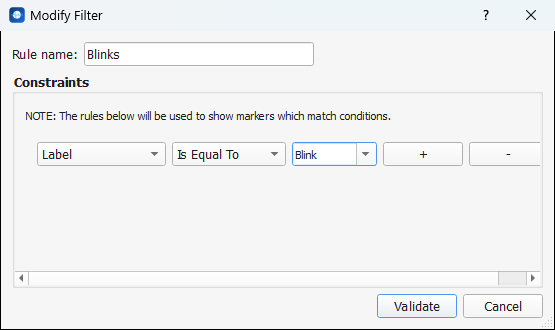
A constraint has three parts, from left to right: what is tested, how, and against what.
| What is tested | Conditions you can choose |
|---|---|
| Label | Is Equal To, Is Not Equal To, Contains |
| Value | Is Equal To, Is Not Equal To, Is Greater Than, Is Lesser Than, Is Within Range |
| Duration | The same as for the value. The duration is in seconds. |
| Targeted Channel | Is Equal To, Is Not Equal To. Global markers never match. |
The + button adds a constraint, the - button removes it. With several constraints, a marker is shown as soon as it matches one of them (they are alternatives, not cumulative conditions).
In the Marker rules window, Modify edits the selected rule and Remove deletes it. The name of the rule appears in the Filter using rule list once it is created.
Where rules are kept
Each rule is a small file with the extension .awr in your Markers folder: it is
available for every recording you open, and you can copy it to another computer. It is a plain XML file, for
instance the rule above:
<!DOCTYPE AnyWaveMarkerRule>
<MarkerRule>
   <ElementType type="0">
      <Condition value="Blink">Is Equal</Condition>
   </ElementType>
</MarkerRule>