The montage editor
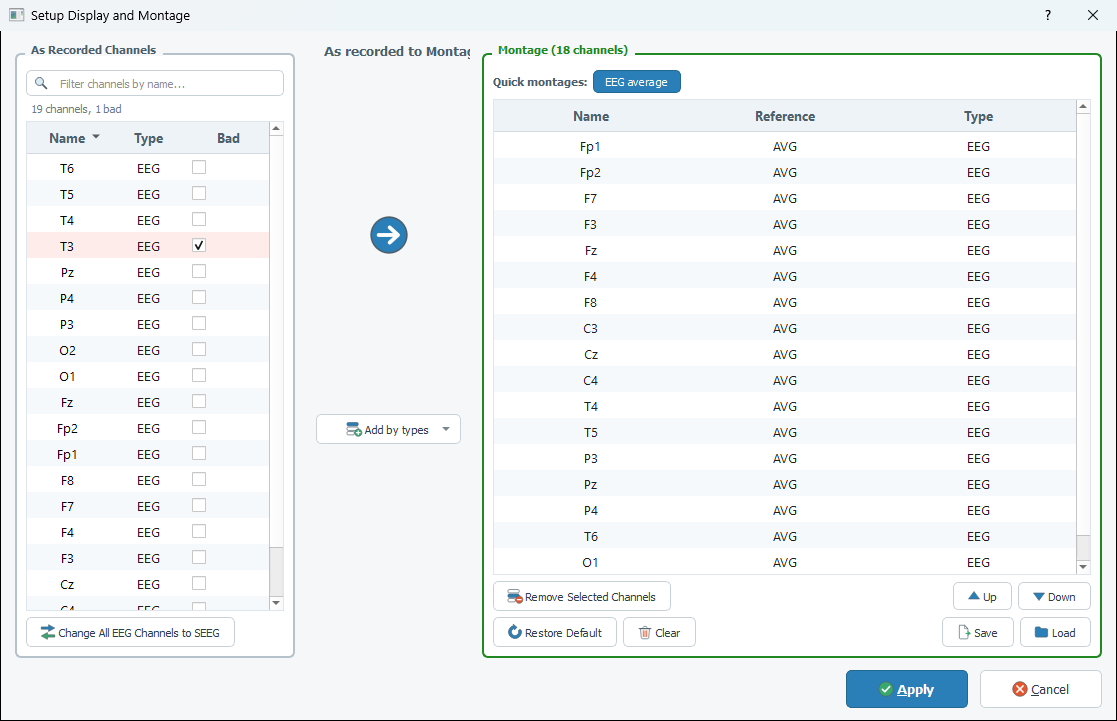
The editor is the window where you decide which channels are displayed, in which order, and against which reference. Open it with the Edit Montage button of the toolbar (or the Edit menu).
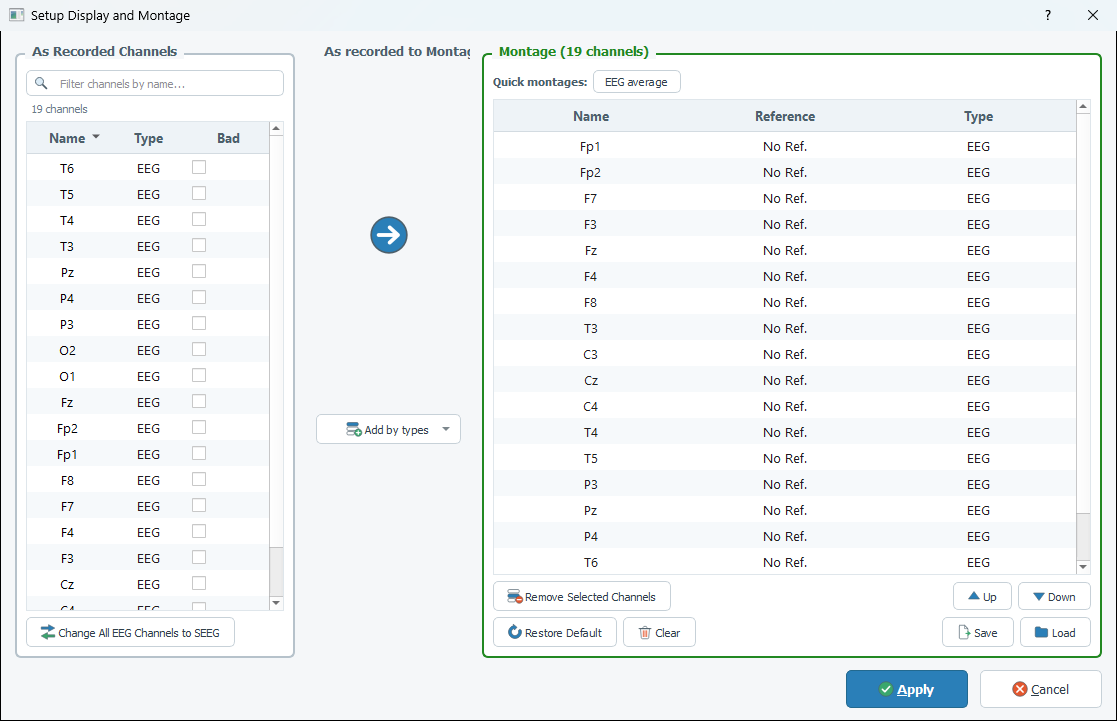
| Part of the window | What it is |
|---|---|
| As Recorded Channels (left) | All the channels found in the file, with their Name, their Type and a Bad check box. |
| The big arrow, Add by types (middle) | Two ways to copy channels from the left list to the montage. |
| Montage (right, green frame) | The montage as it will be sent to the views: Name, Reference, Type. The title tells how many channels it holds. |
| Quick montages (above the montage) | One-click montages, see Quick montages. |
| Apply / Cancel (bottom) | Apply keeps what you did in the window, Cancel drops it. |
Nothing you do in the editor changes the views before you click Apply.
Add channels to the montage
- Select channels in the left list and click the big arrow; or drag them to the montage with the mouse, and drop them where you want them to go.
- Add by types adds all the channels of one type in one go. The menu lists the types found in the file.
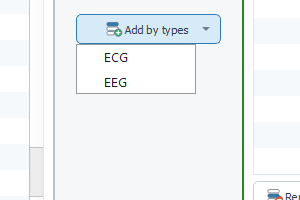
AnyWave never adds a channel that is flagged as bad, and never adds twice a channel that is already in the montage with the same reference. When nothing could be added, a message says how many channels were skipped, and why.
Order, sort and remove
- Up and Down move the selected channels. You can also drag them in the list.
- A click on the Name or Type header sorts the montage (a second click reverses the order). The arrow of the header says what the last sort was; any other change of the montage hides it. The order of the list is the order of the traces in the views.
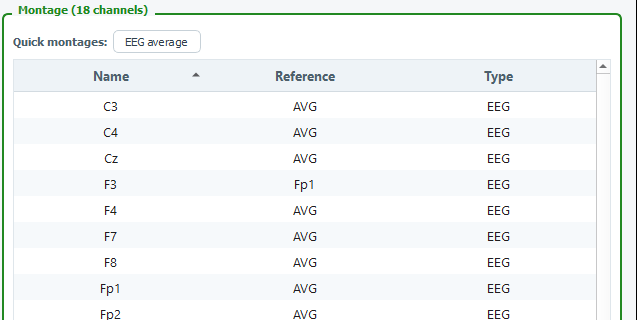
- Remove Selected Channels takes the selected channels out of the montage (AnyWave asks for confirmation).
- Clear empties the montage, and Restore Default rebuilds the default montage of the file. Both ask for confirmation. Apply is not available while the montage is empty.
Find a channel
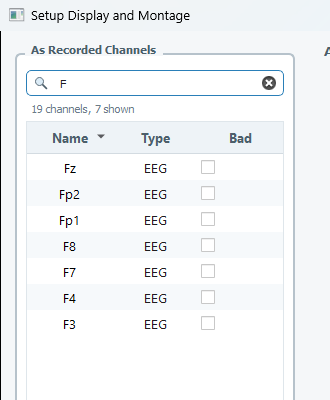
Type in the Filter channels by name box above the left list: only the channels whose name contains the text
are shown (the case does not matter), and the counter under the box says how many (19 channels, 7 shown). This is
the quick way to find a channel in a recording that has hundreds of them.
Bad channels
Tick the Bad box of a channel to flag it as bad. The row turns pink, the counter says how many channels are bad
(19 channels, 1 bad), and the channel is removed from the montage at once, together with every channel that
uses it as a reference (a bipolar channel is useless when its reference is bad).
Un-ticking the box does not put the channel back in the montage: add it again with the arrow. Bad channels are
saved with the recording (.bad file), they are ignored by the quick montages and by the processes you launch, and
in a BIDS database they are shared with channels.tsv.
Change the type of channels
The type of a channel decides how it is displayed and filtered, and which quick montages are offered. Many recording systems store everything as EEG: correct the types here.
- Select one or more channels in the left list, right-click, and choose Change type, then the type.
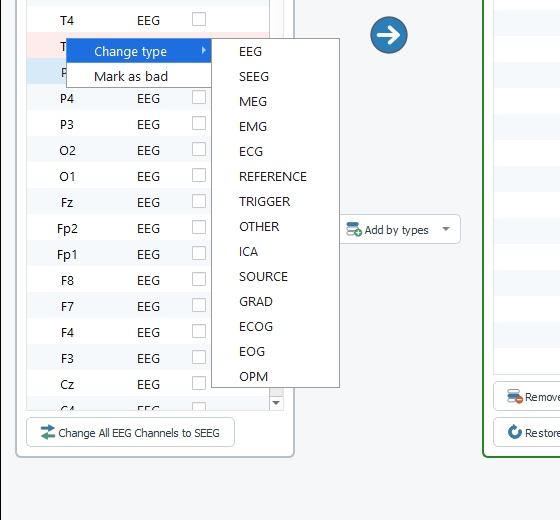
- The change applies to the as recorded channel and to the montage, and clears the reference of the channel in the montage (an ECG channel is not referenced to the EEG average).
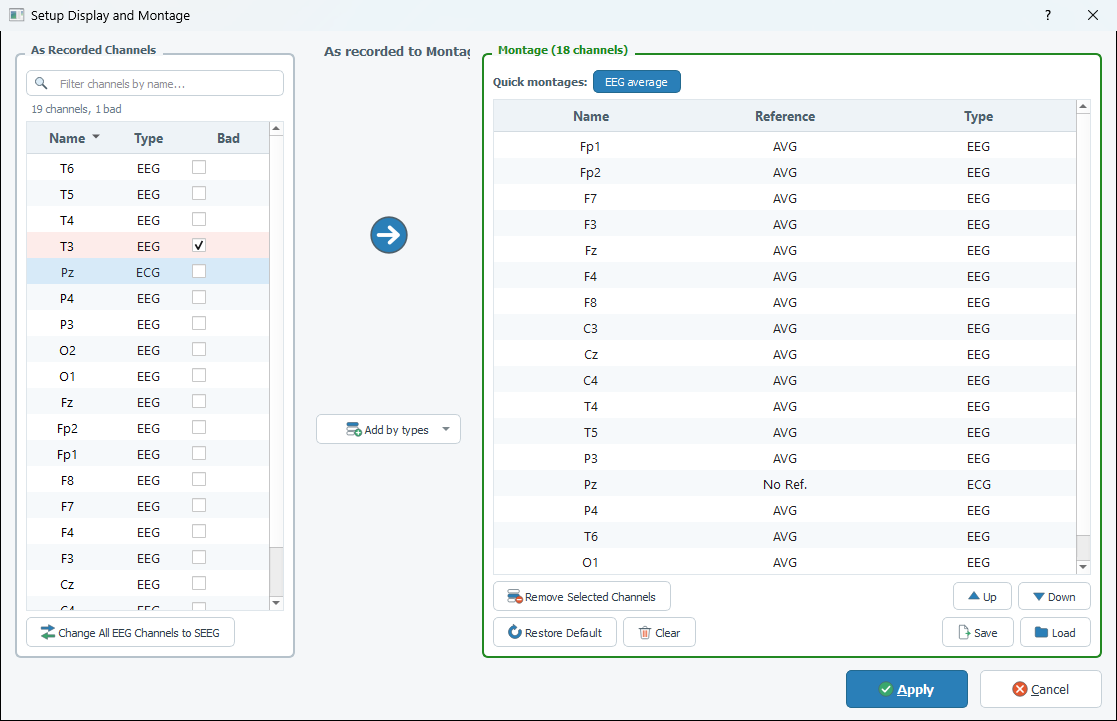
- Change All EEG Channels to SEEG (bottom of the left list) turns every EEG channel into an SEEG channel after confirmation. It is the quick way to type a stereo-EEG recording that was stored as EEG, so that the SEEG quick montages become available.
The types of the file are listed in the Type column: EEG, SEEG, MEG, EMG, ECG, EOG, ECOG, GRAD,
OPM, REFERENCE, TRIGGER, OTHER, ICA, SOURCE.
Reference
Double-click the Reference cell of a channel in the montage to change it. The list offers:
- No Ref.: the channel is displayed as recorded;
- AVG: the channel is displayed against the average of the channels of its type;
- the name of another channel of the same type: the channel is displayed as bipolar, channel – reference.
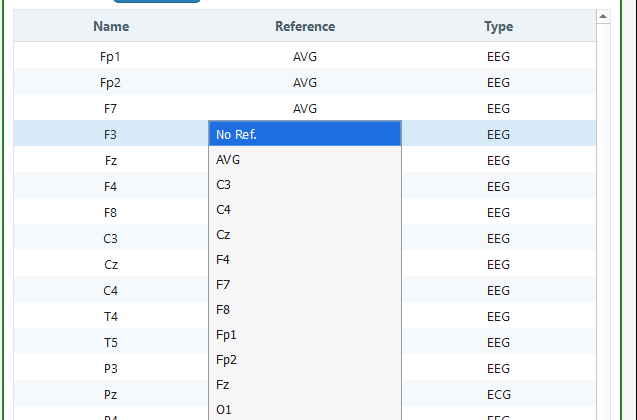
The quick montages (EEG average, SEEG bipolar...) set all the references in one click.
Apply, save, load
Apply closes the editor, sends the montage to the views and saves it with the data file. Cancel closes the editor and forgets everything, including the bad channels and the types you changed in it.
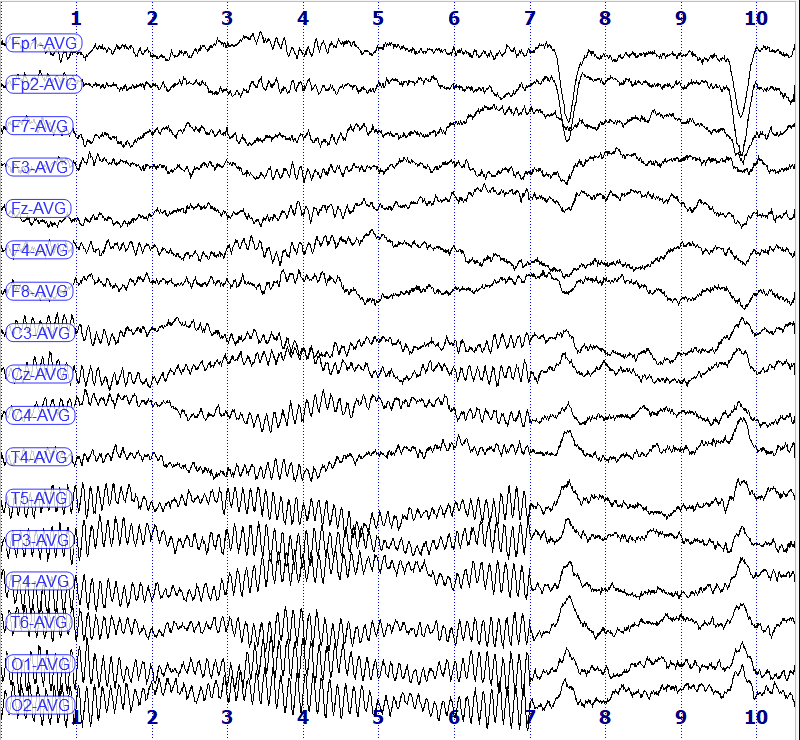
In the views, the label of a channel that has a reference shows it (Fp1-AVG, A1-A2). Here is the recording above
with the average reference applied, and T3 (bad) out of the montage:
Save and Load write and read a montage file, to reuse a montage on other recordings. They are described in Quick montages and saved montages.