Channels
Select channels
A selection is used by several functions: show only the channels you selected, flag them as bad, make a montage of them, export them with Export Data, or run a process on them.
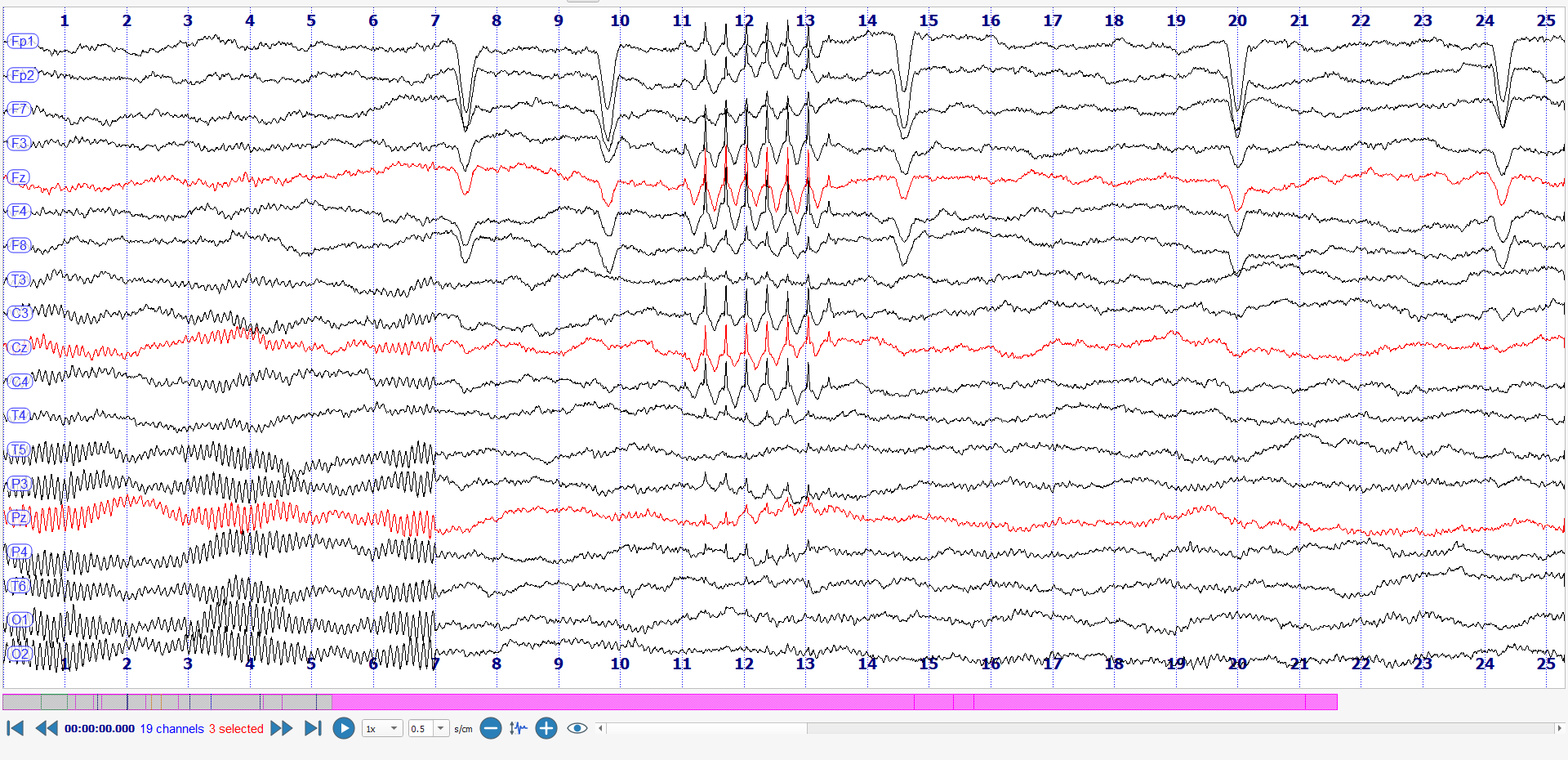
- Click a channel (its name or its trace) to select it. A selected channel is drawn in red.
- Hold Ctrl and drag a rectangle: the channels it crosses are selected.
- Ctrl+A selects all the channels, Ctrl+U unselects them all and Ctrl+I inverts the selection.
The navigation bar tells how many channels are selected.
The menu of the view
Right-click anywhere in a view to open its menu.
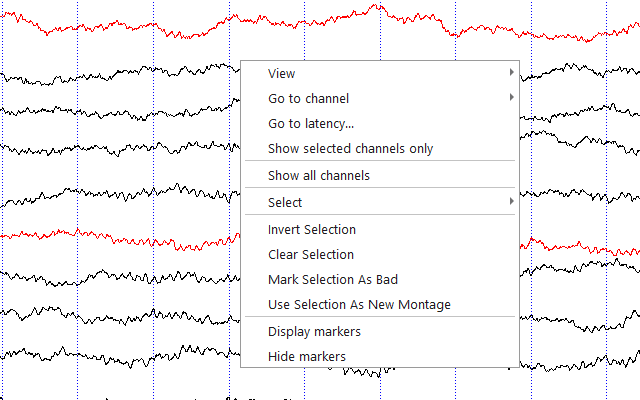
| Entry | Effect |
|---|---|
| View > Close view | Closes the view, see Several views. |
| Go to channel | Scrolls the view to the channel you choose in the list. |
| Go to latency... | Asks for a time in seconds and goes there, see Navigation. |
| Show selected channels only | Hides the channels that are not selected. |
| Show all channels | Shows all the channels again. |
| Select | Selects all channels, or all the channels of one type (EEG channels, SEEG channels...). |
| Invert Selection, Clear Selection | Only when channels are selected. |
| Mark Selection As Bad | Flags the selected channels as bad, see below. |
| Use Selection As New Montage | Makes a montage that contains the selected channels only. |
| Display markers, Hide markers | Shows or hides the markers in the views. |
Two more entries appear when you right-click something in particular:
- on a trace: Select name (or Unselect) and Set as bad;
- on a marker: Show marker in list, which highlights it in the marker list.
Bad channels
A channel that is noisy, disconnected or broken is flagged as bad. Right-click its trace and choose Set as bad, or select several channels and choose Mark Selection As Bad. A bad channel leaves the montage, and is ignored by the quick montages and by the processes you launch. The same can be done in the montage editor, where a channel can also be put back.
Move a channel
To change the order of the traces, hold Shift and drag a channel to its new place. To set the order of all the channels at once, use the montage editor.
Choose the channels that are displayed
- Show selected channels only (above) hides what you did not select, until you choose Show all channels.
- The Visible channels boxes of the view settings hide or show whole types of channels.
- The montage decides which channels exist in the views at all, and against which reference they are displayed.